RingMay Mobile Guide

RingMay Mobile is a phone app that works over the internet. You get your own RingMay Number, no SIM needed.

Screens shown are from RingMay Mobile 1.0.0+31 on Android. Names and numbers are examples.

PersonalAbout RingMay

A calling platform for friends, family, colleagues, businesses and AI.

RingMay Mobile

The phone app where you make and answer calls from friends, family and colleagues. You can also set up May for your business, and talk to your AI specialists.

RingMay Web

The workspace for a business, where it sets up May with its own flows.

  • Your own permanent RingMay Number. No SIM, and no load needed to call other RingMay Numbers.
  • Call friends, family, colleagues and businesses.
  • Call a mobile number.
  • Incoming calls ring like a normal phone call, even when the app is closed.
  • Talk to your AI specialists.
  • Also for a business: May answers your Business Number and your Business Card link.

PersonalAbout RingMay

Your RingMay Mobile Number

Your own phone number on the RingMay network. Friends, family and colleagues dial it, and your phone rings.

  • One number for each account.
  • 11 digits, grouped 4-4-3.
  • Not tied to a country, and no SIM needed.
  • Numbers starting with 1 belong to AI specialists.

Is it permanent for my account?

Yes. Your account keeps the same number for as long as the account exists.

How do I get one?

Sign in with Google. Your number is assigned automatically the first time.

Can I choose or change it?

No. It is assigned at random and cannot be changed.

Does it expire or cost anything?

No. The number is free and does not expire.

What if I reinstall or get a new phone?

Sign in with the same Google account, and you have the same number.

What if I delete my account?

Your number is retired and never given to anyone else. A new account gets a new number.

PersonalAbout RingMay

Calling with your number

Can I call another RingMay Number?

Yes. Open the dial pad, stay on the RingMay tab, enter all 11 digits and tap Call.

Do those calls cost anything?

They are free. Mobile numbers and AI specialists use credits.

Can I call a business?

Yes. Dial its Business Number, and May answers. The business pays for the call.

Can a normal phone call my RingMay Number?

No. It works only on RingMay.

Can I call without signing in?

Yes, for a short free time. A guest has no number and cannot receive calls.

What if a call does not go through?

The app tells you why, such as busy, not in service, cannot be reached or no answer. When the person did not answer, you may be able to leave a voicemail.

PersonalAbout RingMay

Sharing and using your number

Where do I find my number?

At the top of the Contacts tab, with a button to copy it.

How do I share it?

Copy it, or share your calling card. The card shows only your name, number and QR code.

Do I need a SIM or internet?

No SIM. Your phone needs an internet connection to make and receive calls.

Is there an iPhone app?

Not yet. RingMay Mobile is for Android, on Google Play.

Can I use it on two phones?

No. It is one phone per account, so signing in on a new phone moves your number there.

Is it safe?

Yes. Your calls and data travel over encrypted connections, and RingMay runs on Google Cloud. You sign in with Google, so there is no separate password, and you can delete your account at any time.

PersonalAbout RingMay

Three tabs and a dial pad.

  • Contacts. Your RingMay Mobile Number, your favorites, your contacts and your AI specialists.
  • Recents. All calls, missed calls and voicemail.
  • Scheduled. Your Assistant calls your contacts for you, using your credits. Each contact is asked to accept first, and you get a summary afterwards.
  • Dial pad. Dial a RingMay Number or a mobile number.
  • The Business side. Switch to it in Settings: Live, Inbox, Knowledge and Info for your business, with May answering its calls.

PersonalGetting started

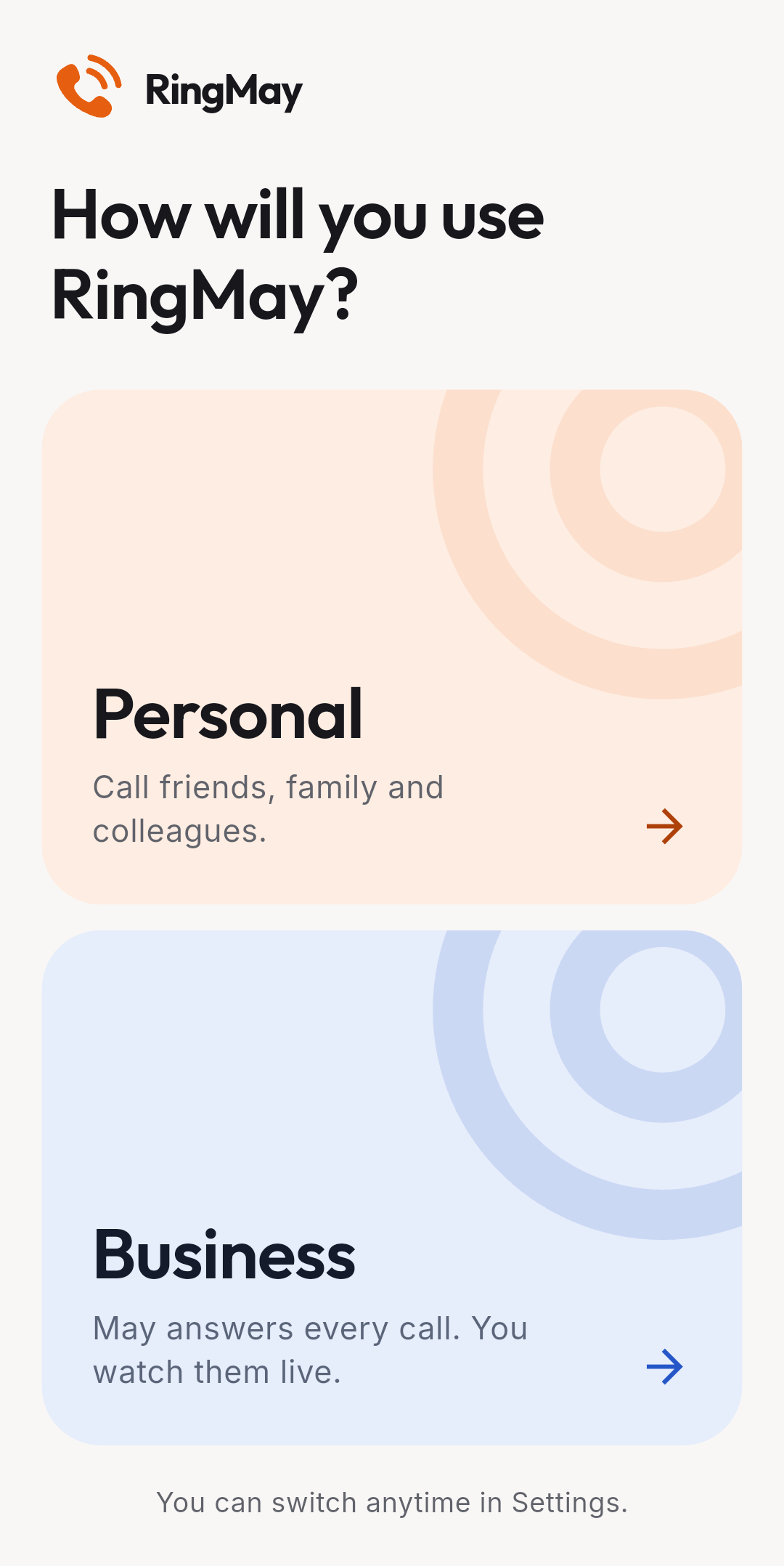
Choose your side

The first screen. Pick Personal to call people, or Business to have May answer calls for your business. You can switch anytime in Settings.

How to choose

  1. Tap Personal or Business.
  2. To change later, open Settings and use Switch side.

Switching side only changes the screen. It never changes which calls ring.
9:41●●●
Choose Personal or Business

PersonalGetting started

Welcome

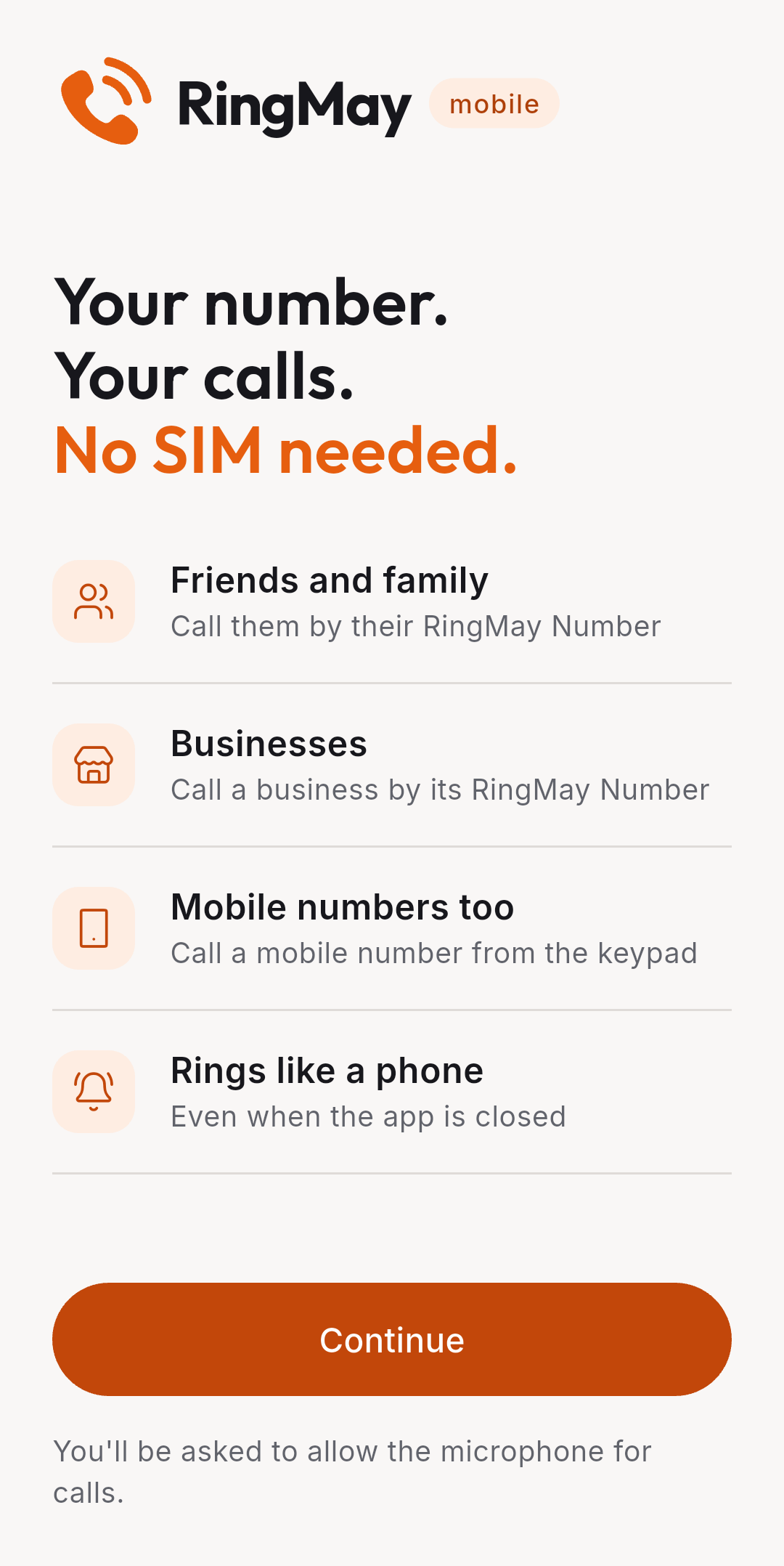
A short list of what RingMay does: call friends, businesses and mobile numbers, and ring like a phone even when the app is closed.

How to get started

  1. Tap Continue.
  2. Allow the microphone when Android asks. Calls need it.

If the app says Update required, tap Update. Google Play opens and installs the new version.
9:41●●●
Welcome screen

PersonalGetting started

Using it without an account

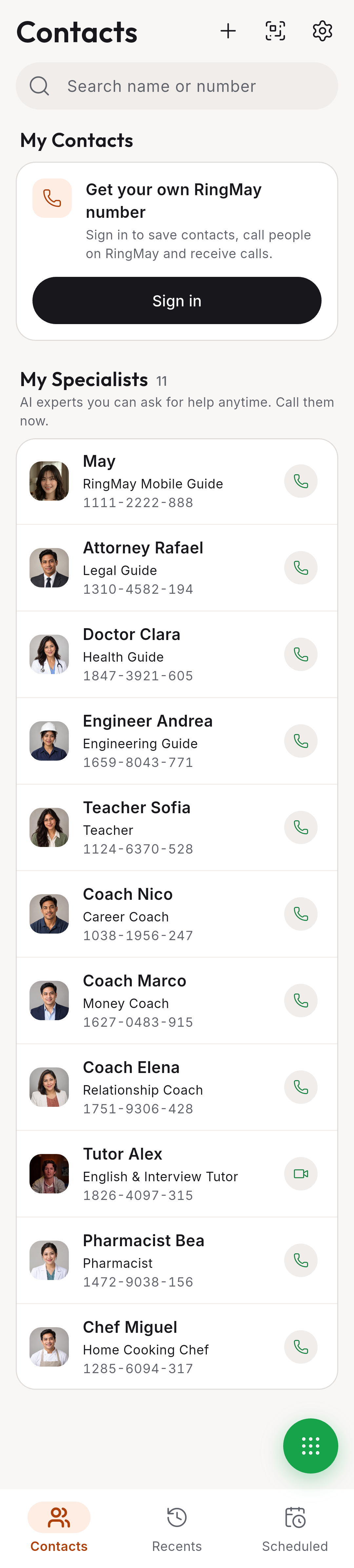
You can try RingMay before signing in. As a guest you can call the AI specialists for a short time. Sign in to get your own number, save contacts and receive calls.

How to call a specialist as a guest

  1. Find the specialist under My Specialists.
  2. Tap the green call button.

How to sign in

  1. Tap Sign in on the Contacts screen.

When a guest's free time runs out, the sign-in screen opens by itself.
9:41●●●
Contacts as a guest

PersonalGetting started

Sign in

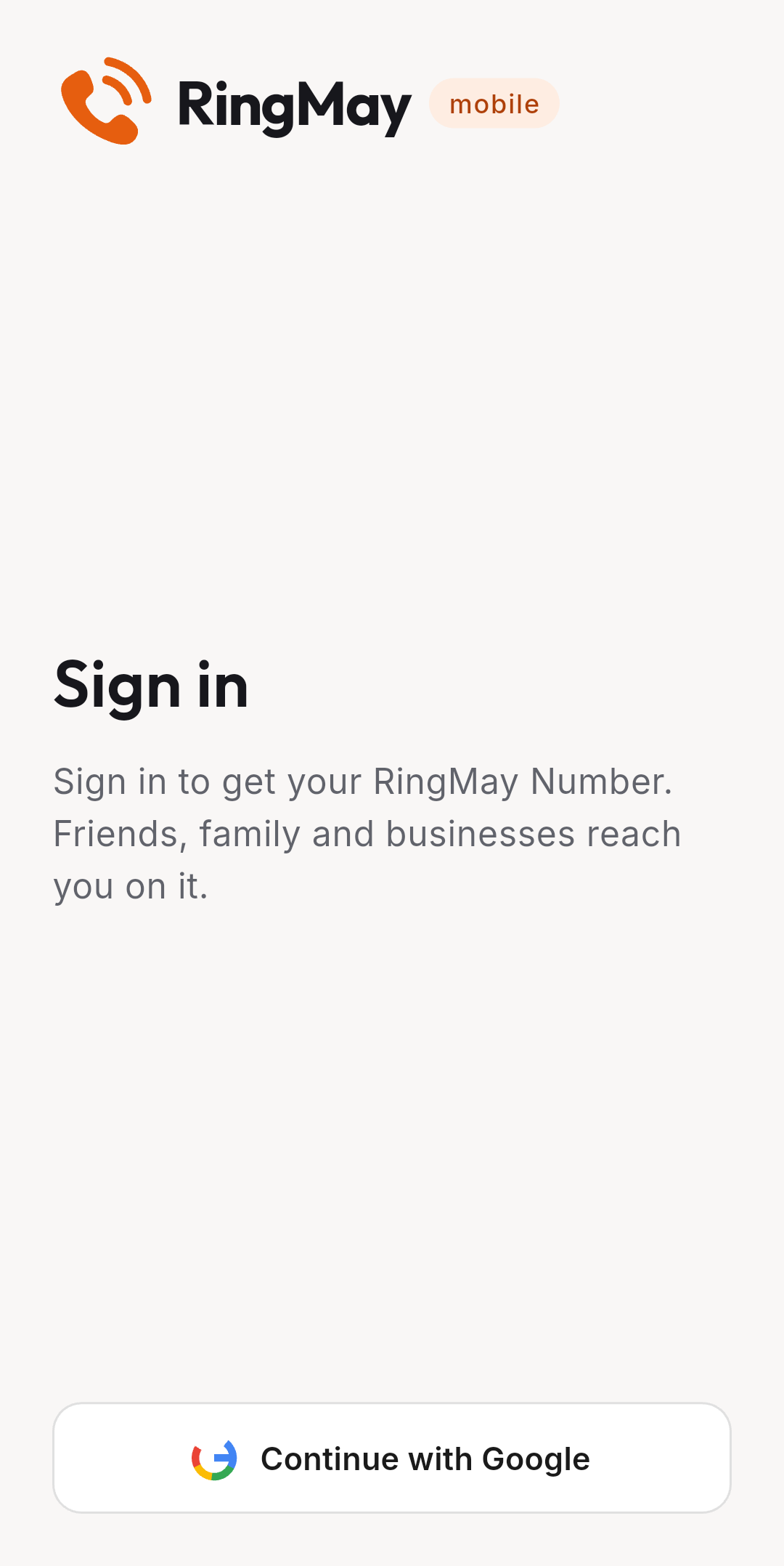
Sign in with Google. Signing in and signing up are the same step. Your first sign-in gives you your own RingMay Number.
How to sign in

  1. Tap Continue with Google.
  2. Pick your Google account.
  3. Allow notifications so you see incoming calls.
9:41●●●
Sign in

PersonalGetting started

Reliable ringing

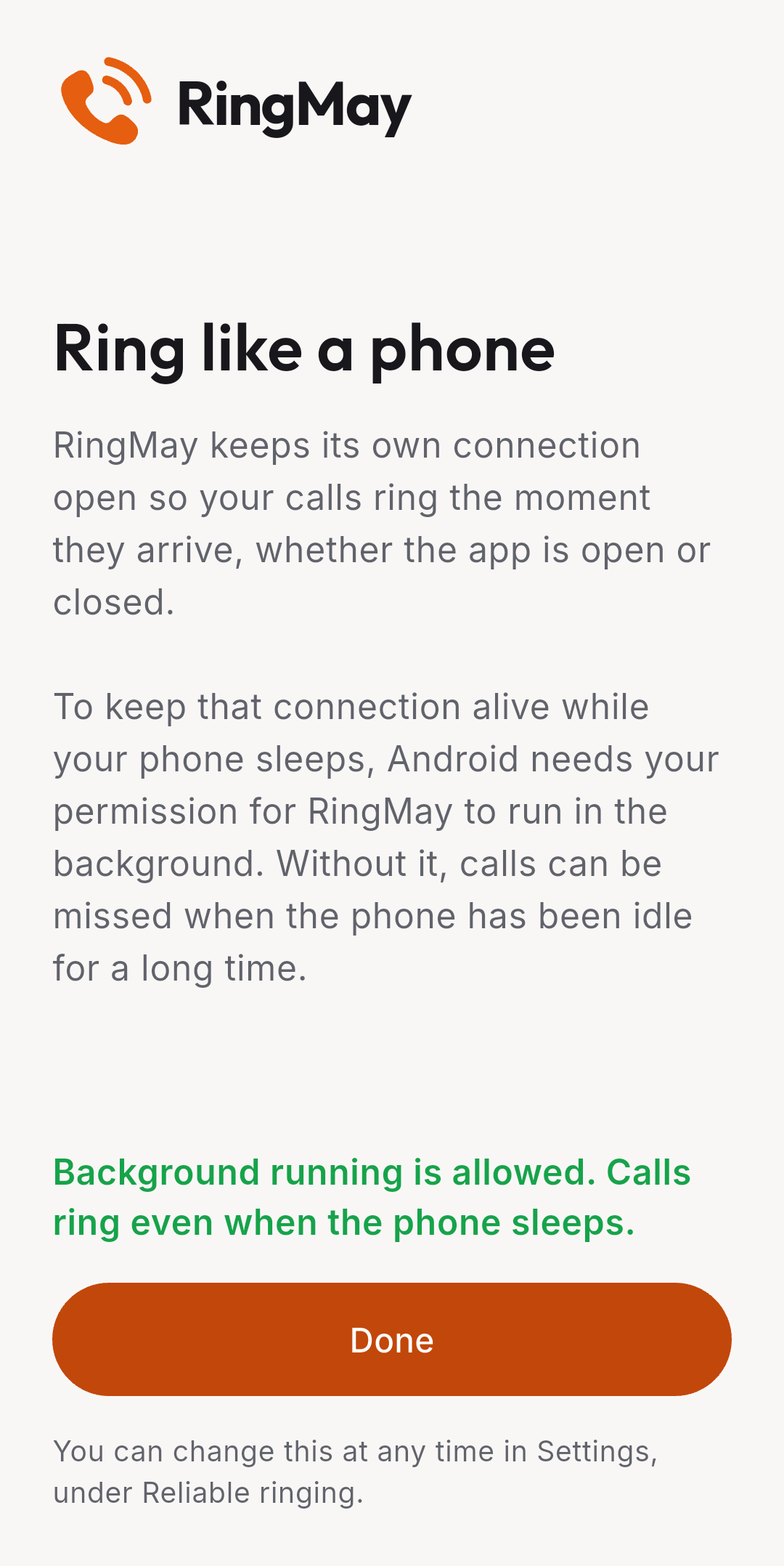
Lets RingMay keep its connection open, so calls ring the moment they arrive, even when the app is closed or the phone sleeps.
How to turn it on

  1. After sign-in, tap Continue on this screen.
  2. Tap Allow when Android asks to let the app run in the background.

How to check it later

  1. Open Settings, then Reliable ringing.
9:41●●●
Reliable ringing

PersonalGetting started

So your phone always rings

Four things Android asks for. Each one is needed for calls to come through like a normal phone call.

Microphone

So you can make and answer calls.

Notifications

So your phone rings when someone calls.

Full screen ring

So the ring screen appears like a normal phone call, even on a locked phone.

Reliable ringing

So it rings even after the phone has been idle for a long time. It is in Settings, under Reliable ringing.

Not ringing? Check that you are signed in, have internet, and that Notifications and Reliable ringing are on.

PersonalContacts

Contacts

Your home screen. It shows your RingMay Mobile Number, your favorites, the people you saved, and the AI specialists you can call anytime.

How to call someone

  1. Tap the green call button next to their name.

How to find someone

  1. Type a name or number in Search.

How to add a favorite

  1. Tap the star next to a contact. Favorites show at the top.

How to share your number

  1. Tap the copy button on My RingMay number.

The green round button at the bottom opens the dial pad. The tabs at the bottom switch between Contacts, Recents and Scheduled.

9:41●●●
Contacts

PersonalContacts

Add a contact

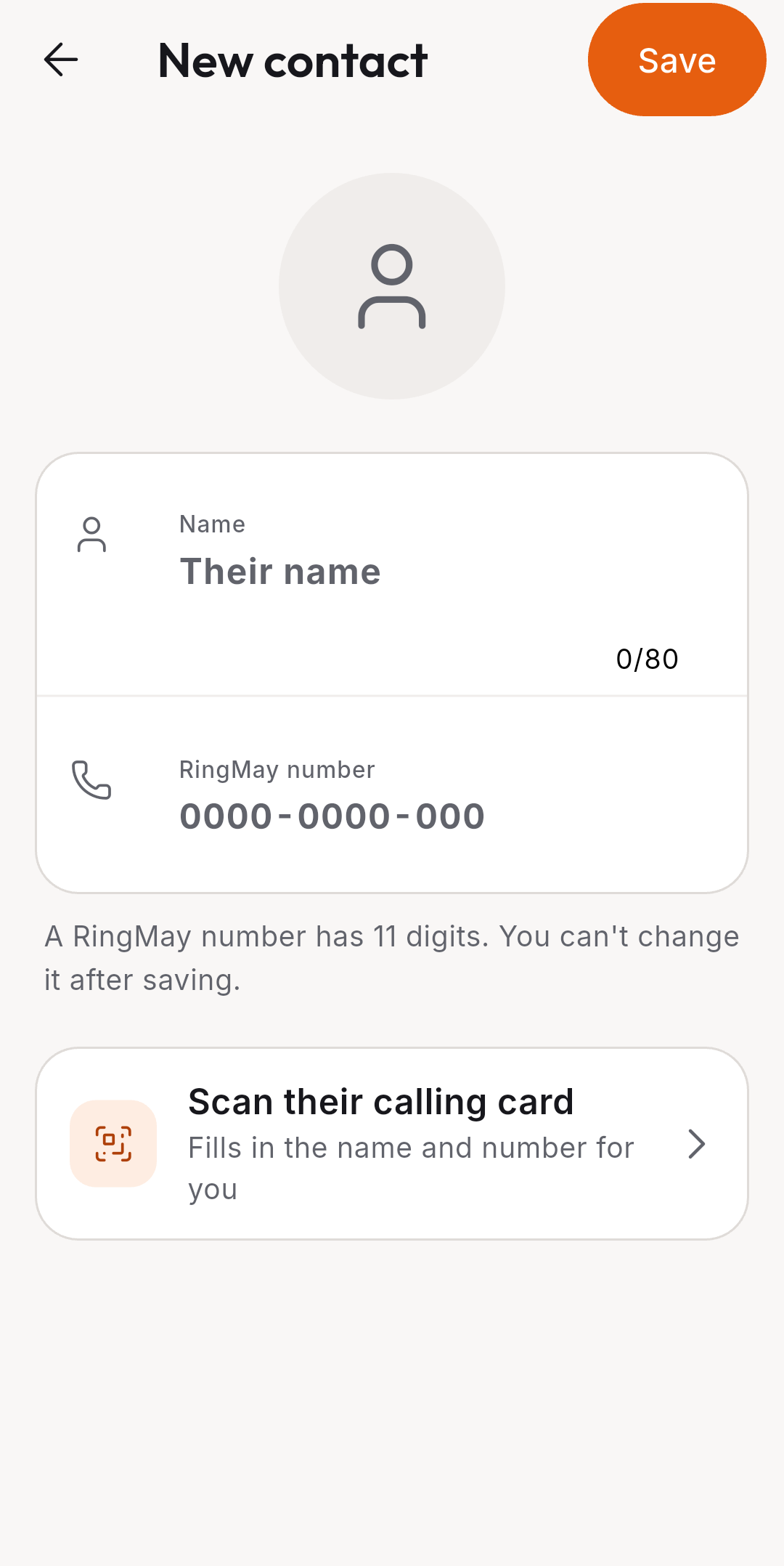
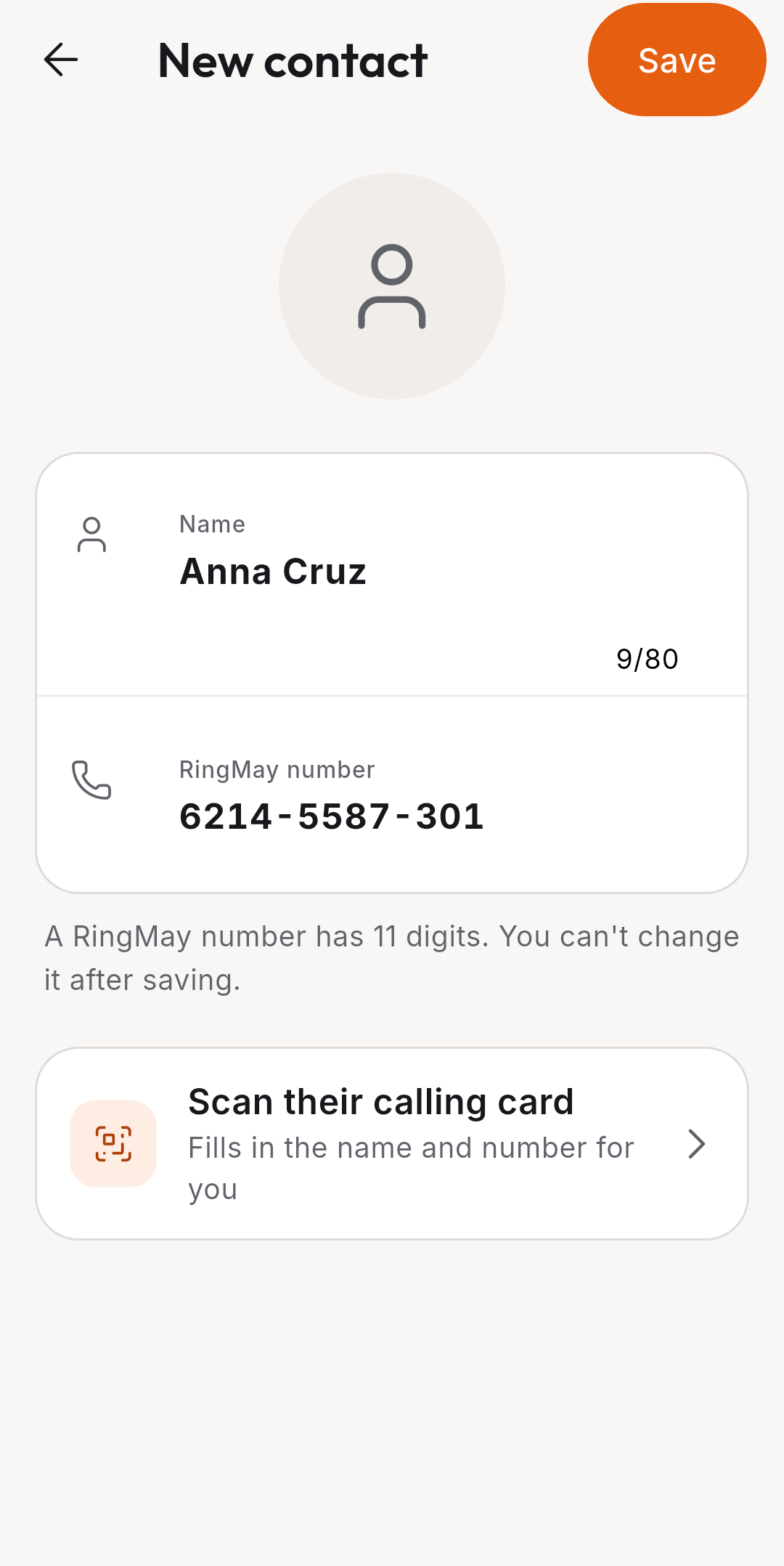
Save someone by name and RingMay Number. A RingMay Number has 11 digits, and the person must already be on RingMay.

How to add a contact

  1. On Contacts, tap + at the top.
  2. Type their Name and RingMay number.
  3. Tap Save.

You can't change the number after saving. To fix a wrong number, delete the contact and add it again.
9:41●●●
New contact, empty
Empty
9:41●●●
New contact, filled in
Filled in

PersonalContacts

Scan a calling card

Add someone by scanning the QR code on their RingMay calling card. The name and number fill in for you.
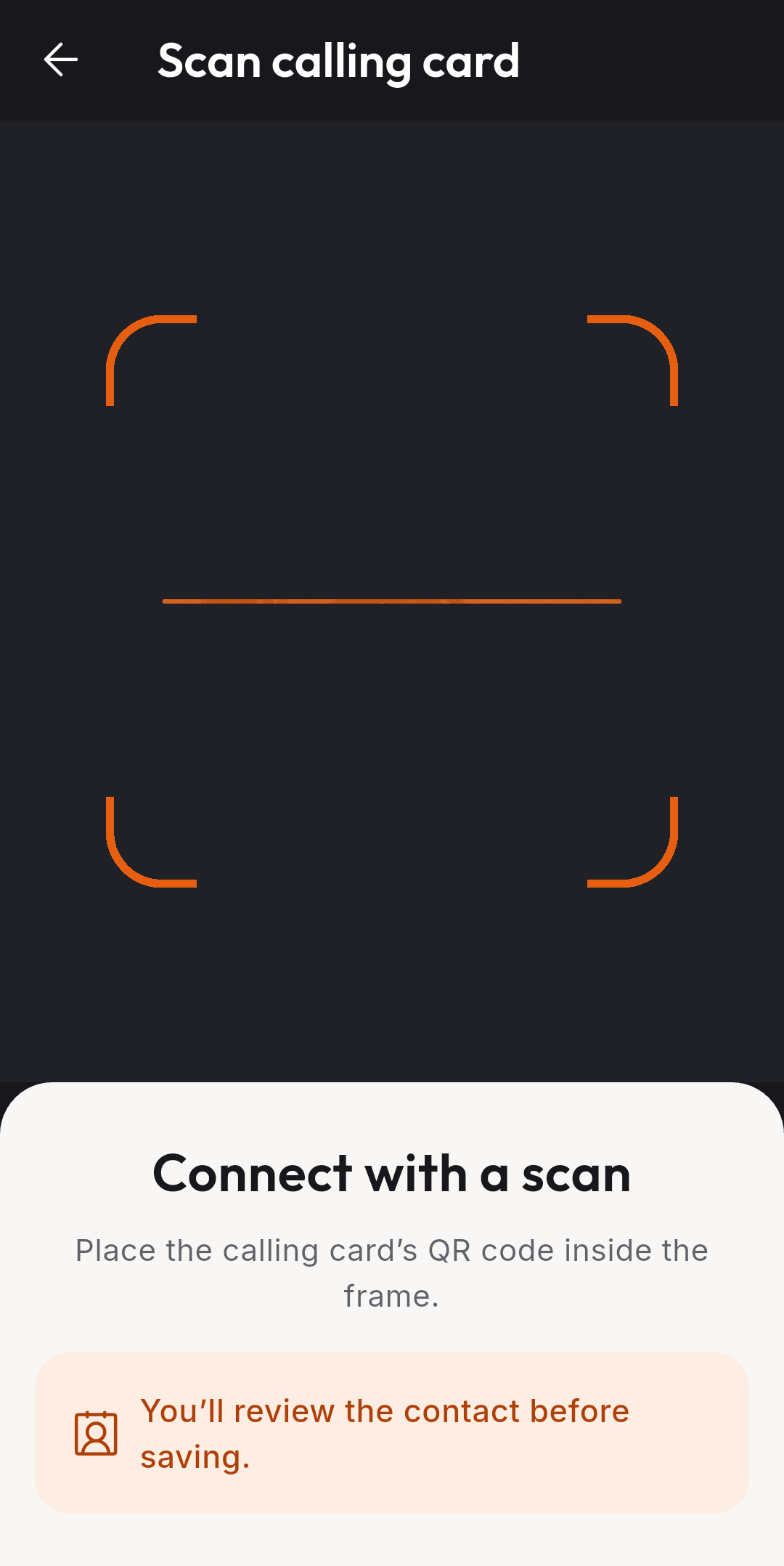
How to scan a card

  1. On Contacts, tap the scan icon at the top.
  2. Allow the camera.
  3. Hold the QR code inside the frame.
  4. Check the contact, then save it.
9:41●●●
Scan calling card

PersonalContacts

Invite friends

No app yet? Share your invite link, and you get credits when they sign up.

  • Your invite link is the last entry on the Contacts tab, under your contacts.
  • It opens RingMay Mobile on Google Play with you as the inviter.
  • When they sign in for the first time, you get credits.
  • You need to be signed in to invite and to save contacts.

PersonalContacts

Contact details

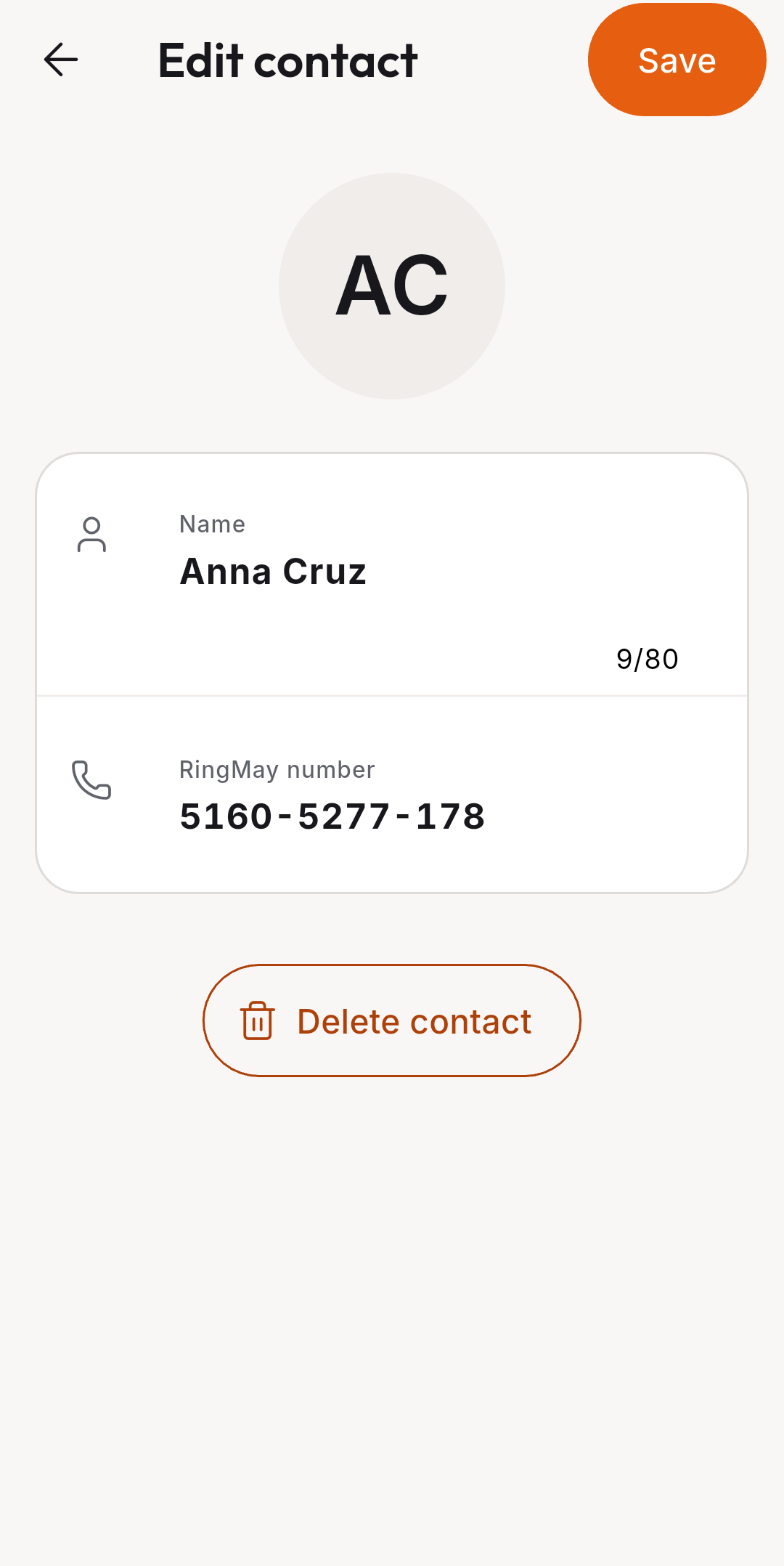
Everything about one contact: their number, a call button, an Assistant call, and your recent calls with them.
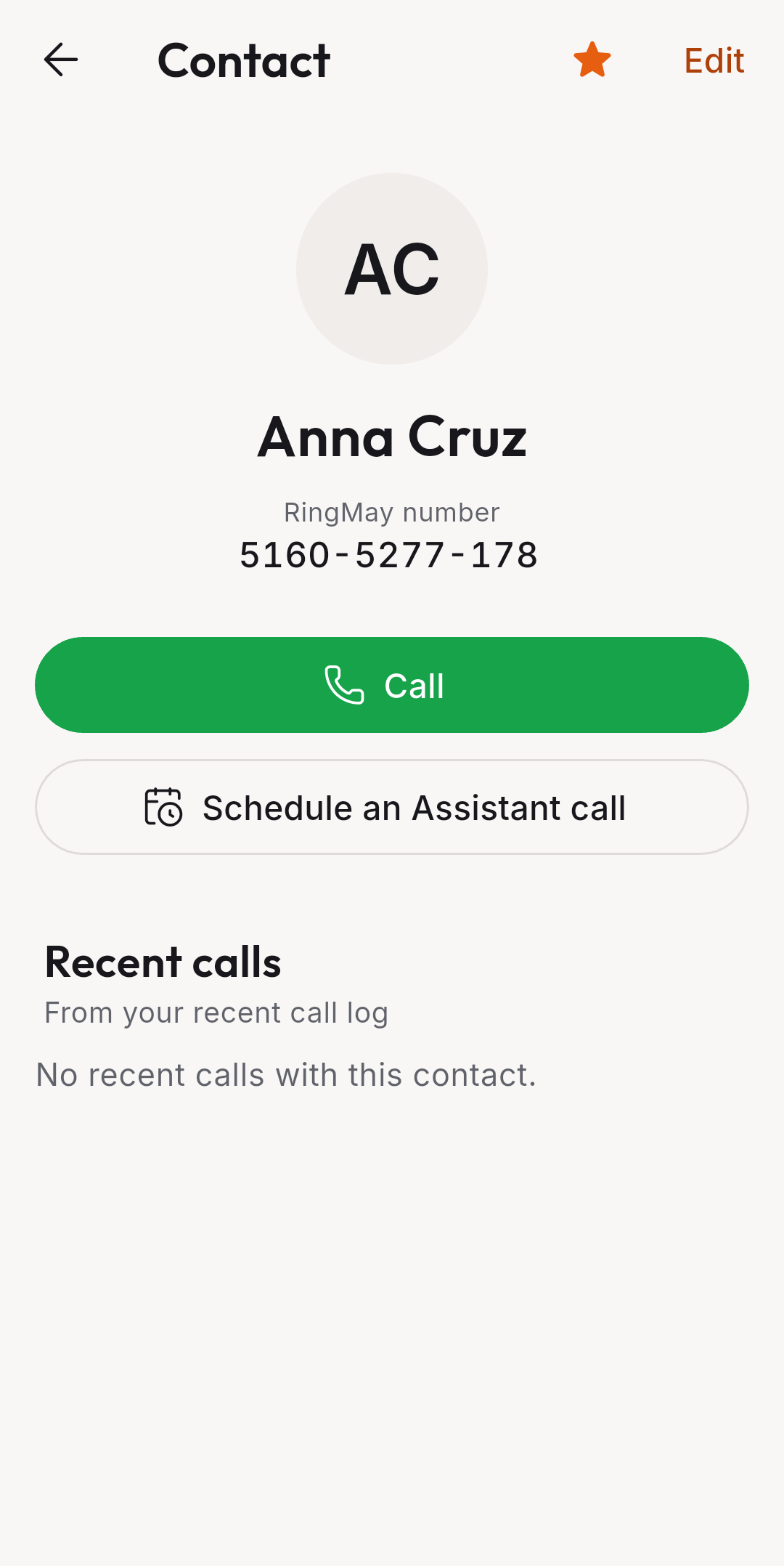
How to open a contact

  1. Tap their name on Contacts.

How to rename a contact

  1. Tap Edit, change the name, then tap Save.

How to delete a contact

  1. Tap Edit, then Delete contact.
9:41●●●
Contact details
Contact
9:41●●●
Edit contact
Edit contact

PersonalCalls

Dial pad

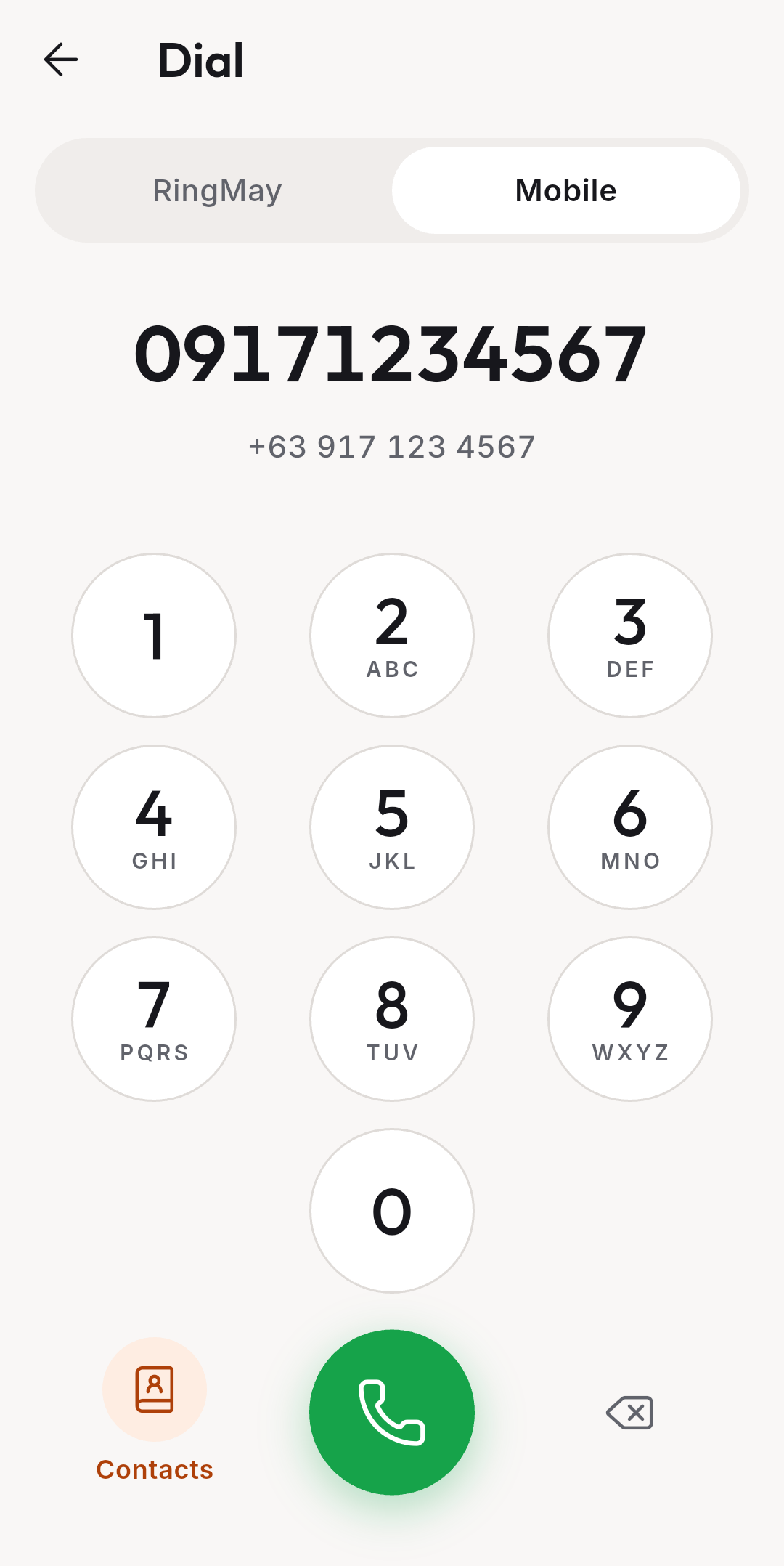
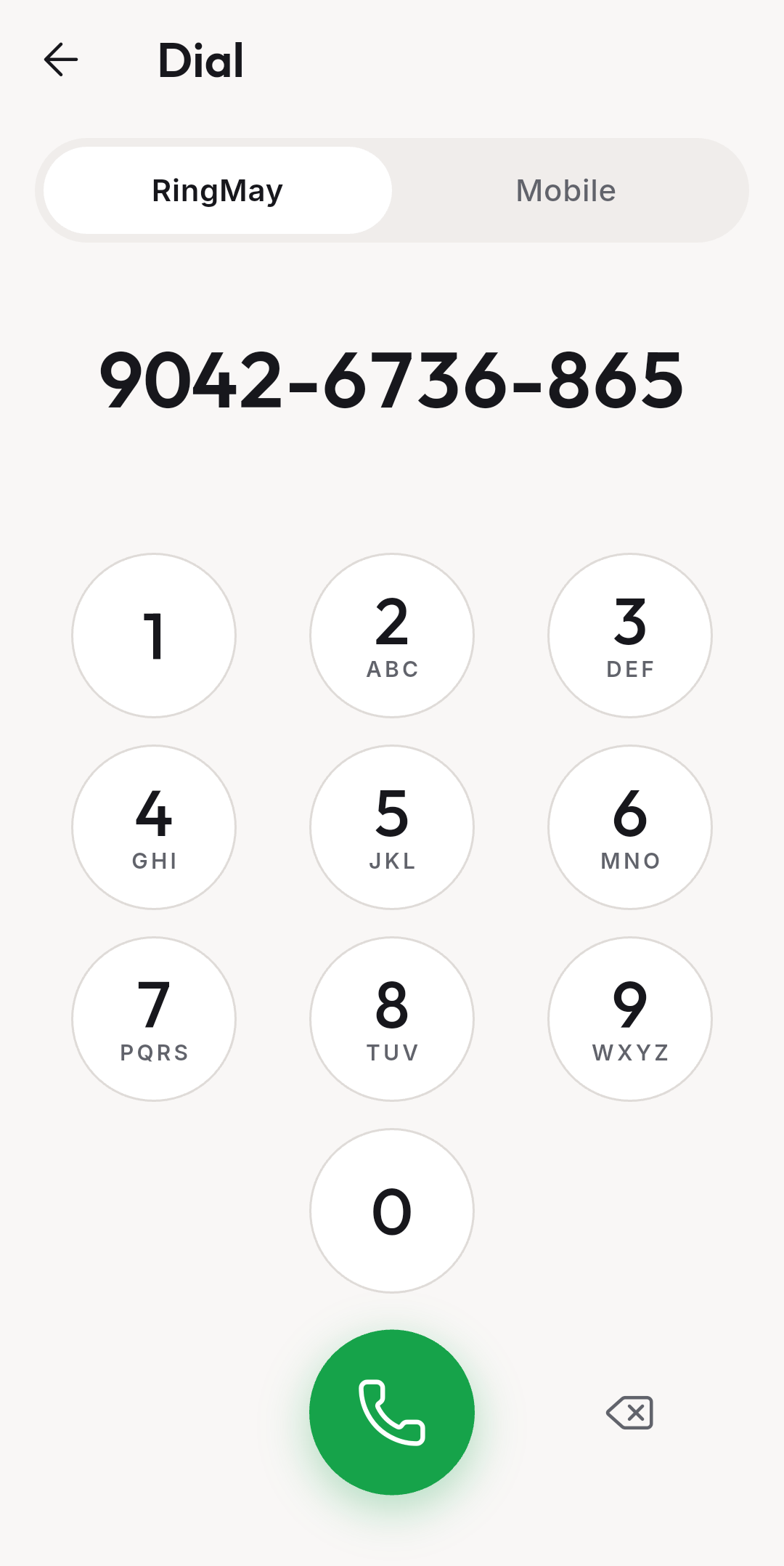
Call by number. The RingMay tab calls a RingMay Number. The Mobile tab calls a regular mobile number in your country.

How to call a RingMay Number

  1. Tap the green round button on Contacts or Recents.
  2. Stay on RingMay and type the 11 digits.
  3. Tap the green call button.

How to call a mobile number

  1. Tap the Mobile tab.
  2. Type the number, or tap Contacts to pick one from your phone.
  3. Tap the green call button.

Mobile calls need an account and use credits. Calls abroad are not available yet.
9:41●●●
Dial pad, RingMay tab
RingMay tab
9:41●●●
Dial pad, Mobile tab
Mobile tab

PersonalCalls

Making a call

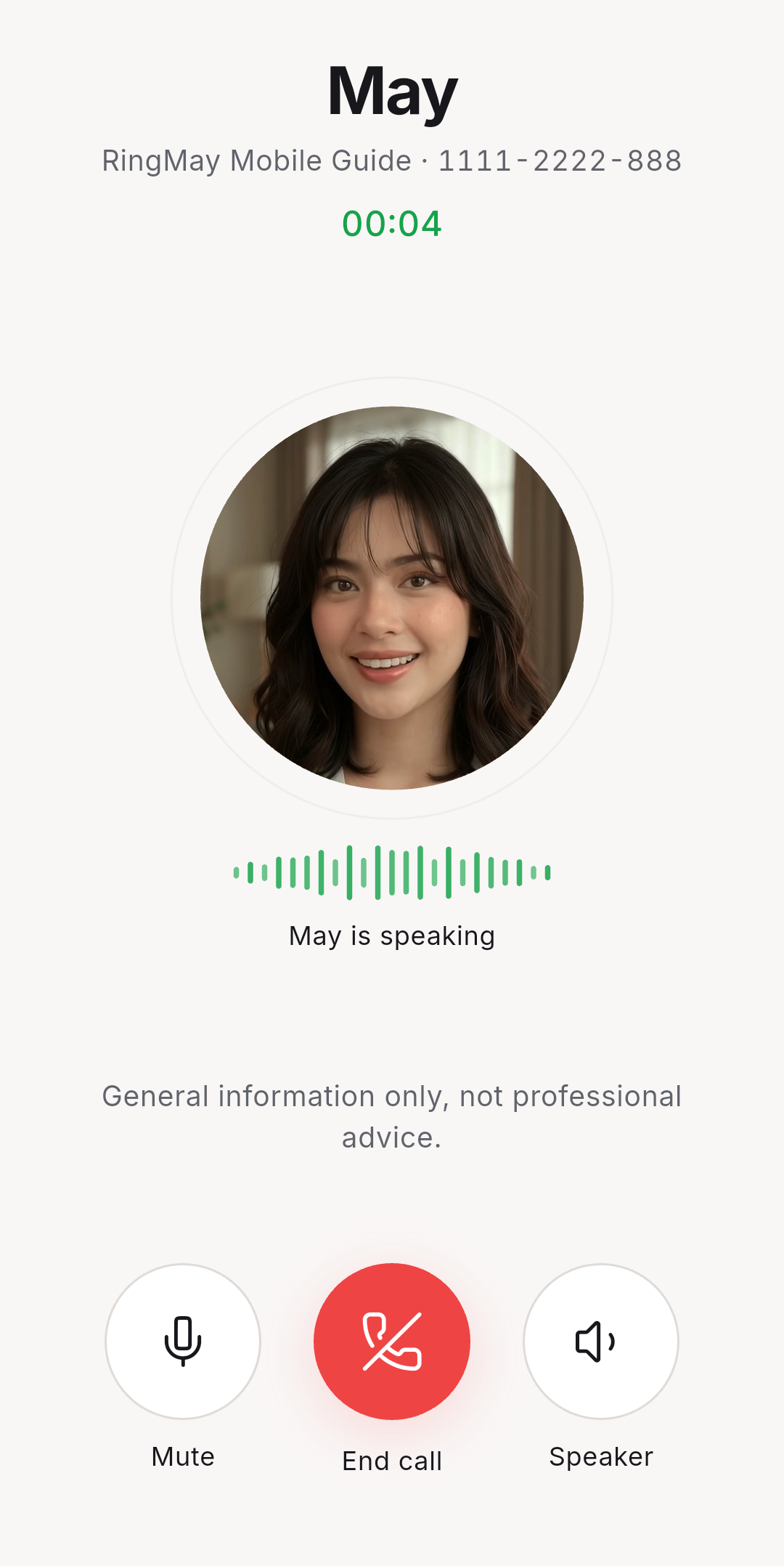
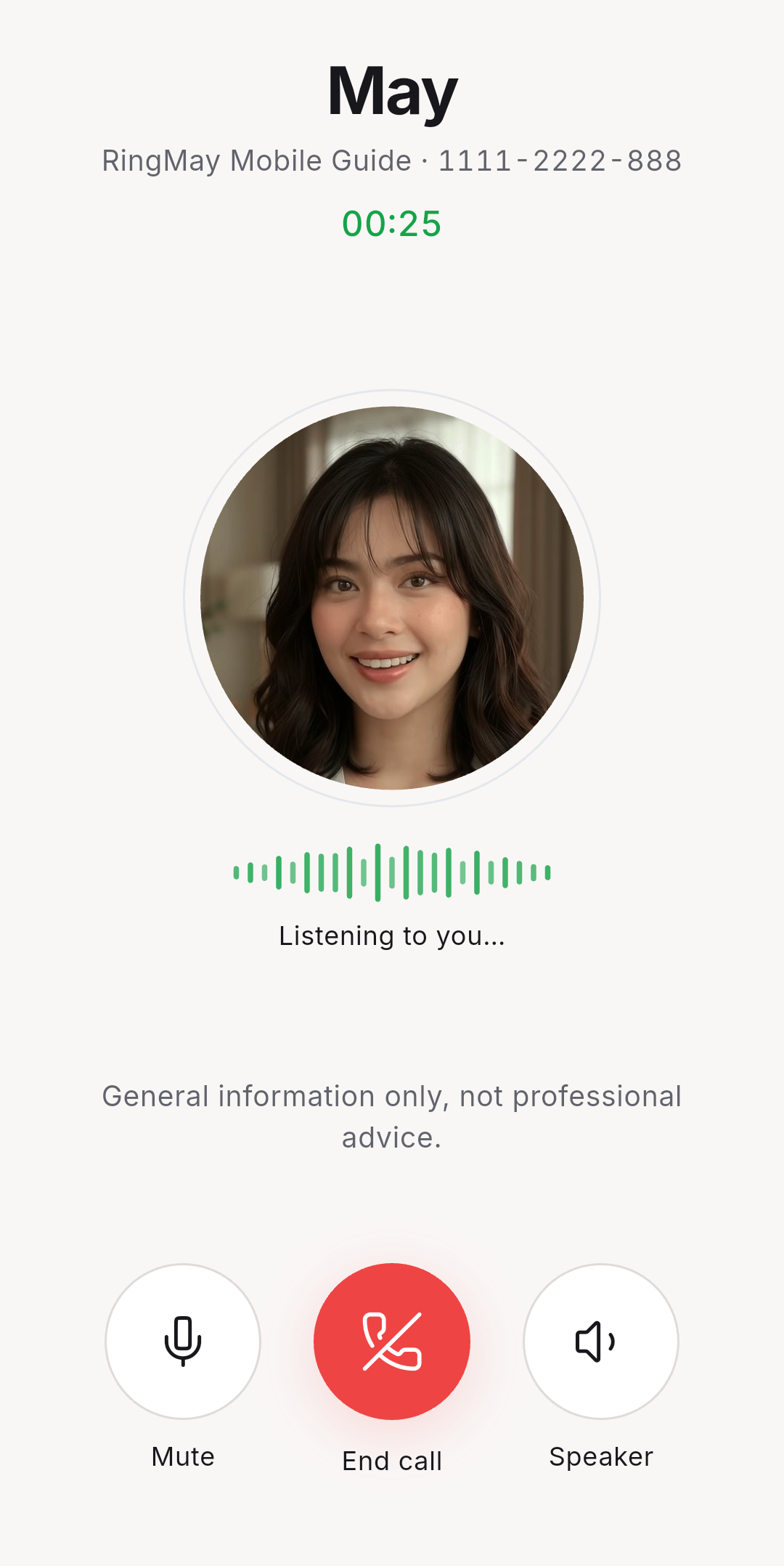
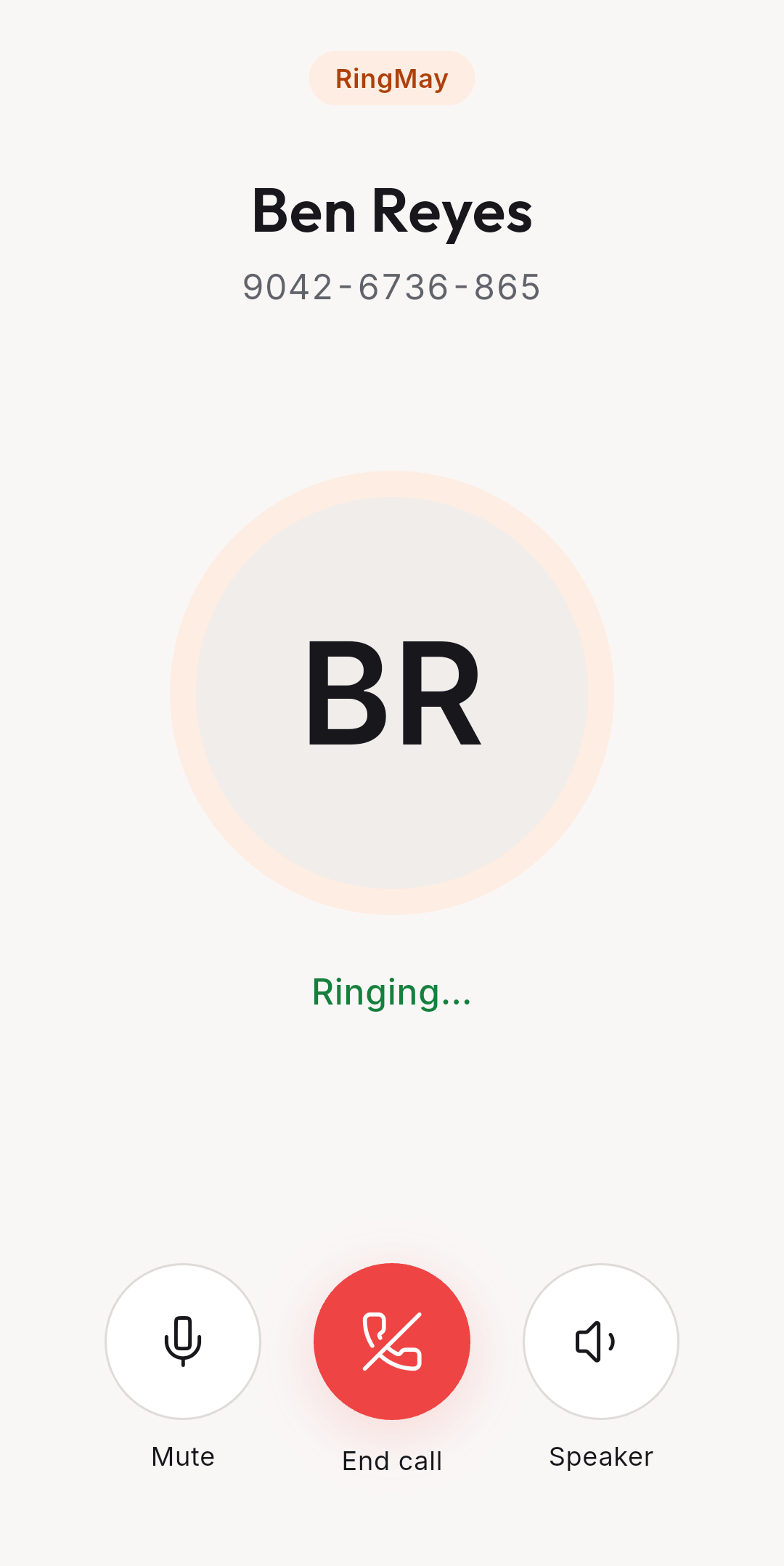
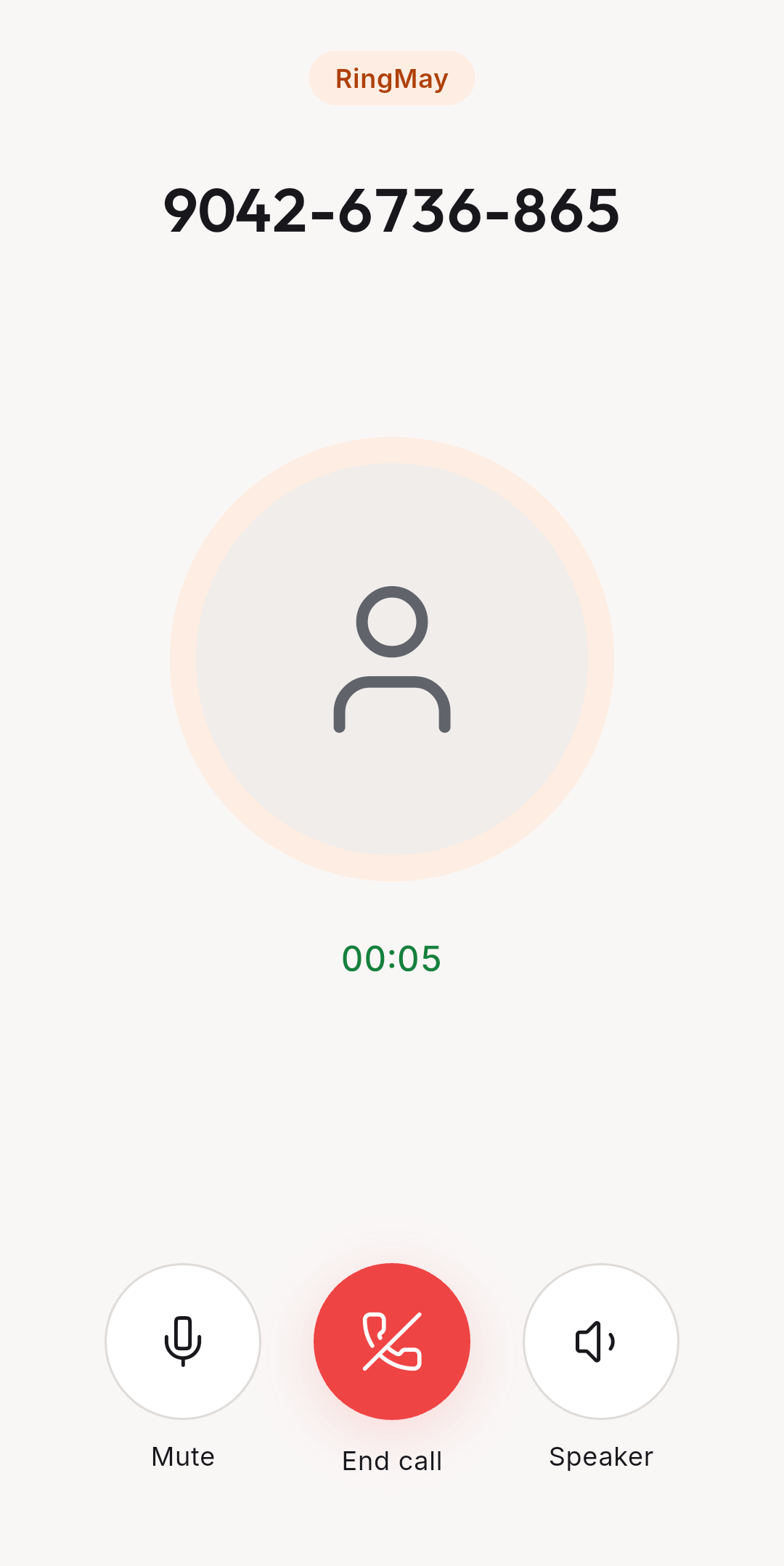
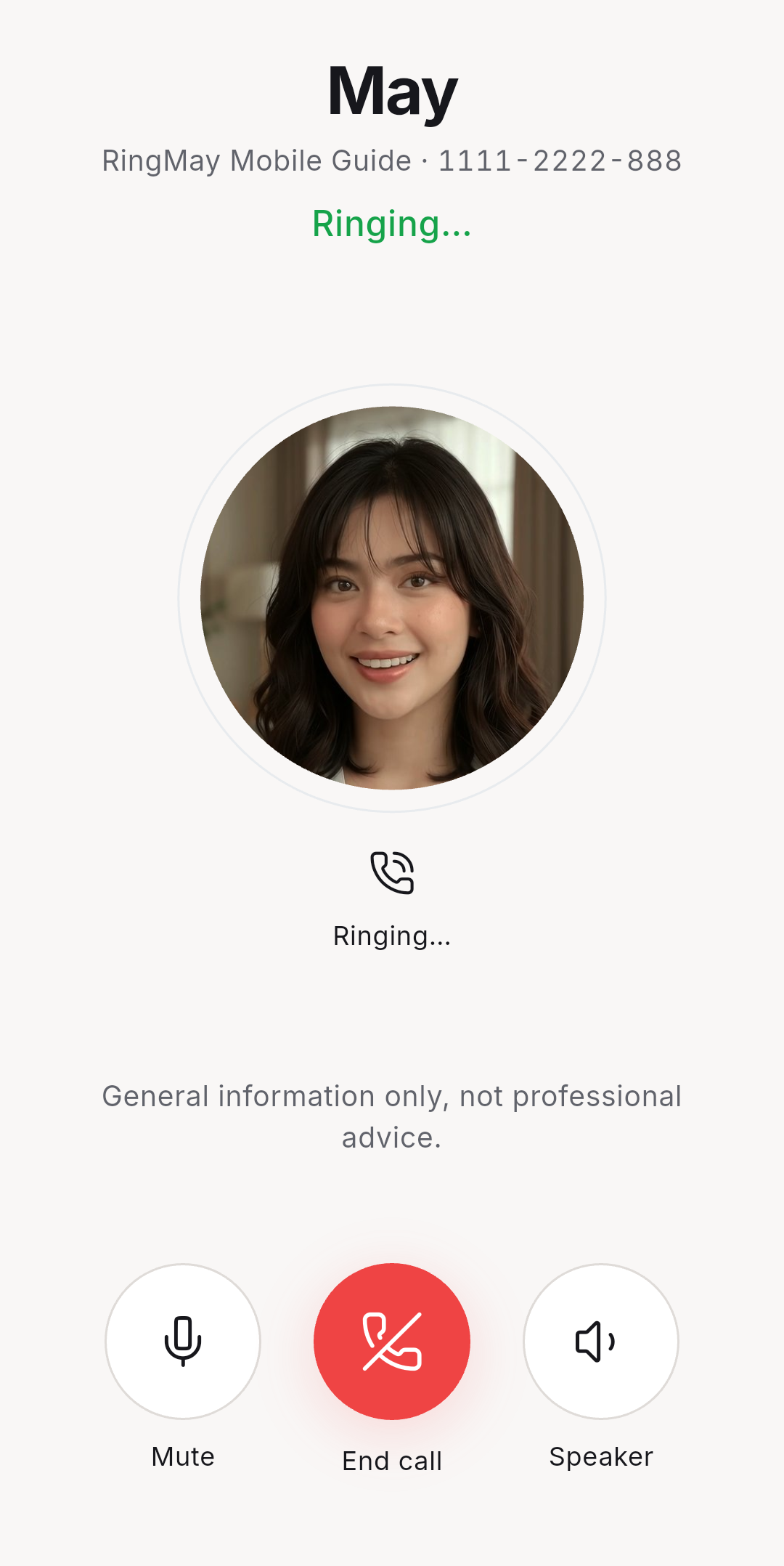
A call rings first, then shows the time talked. With an AI specialist you see when they speak and when they listen. Just talk, and you can interrupt anytime.

How to call a person

  1. Tap the green call button beside a contact, or dial their RingMay Number.
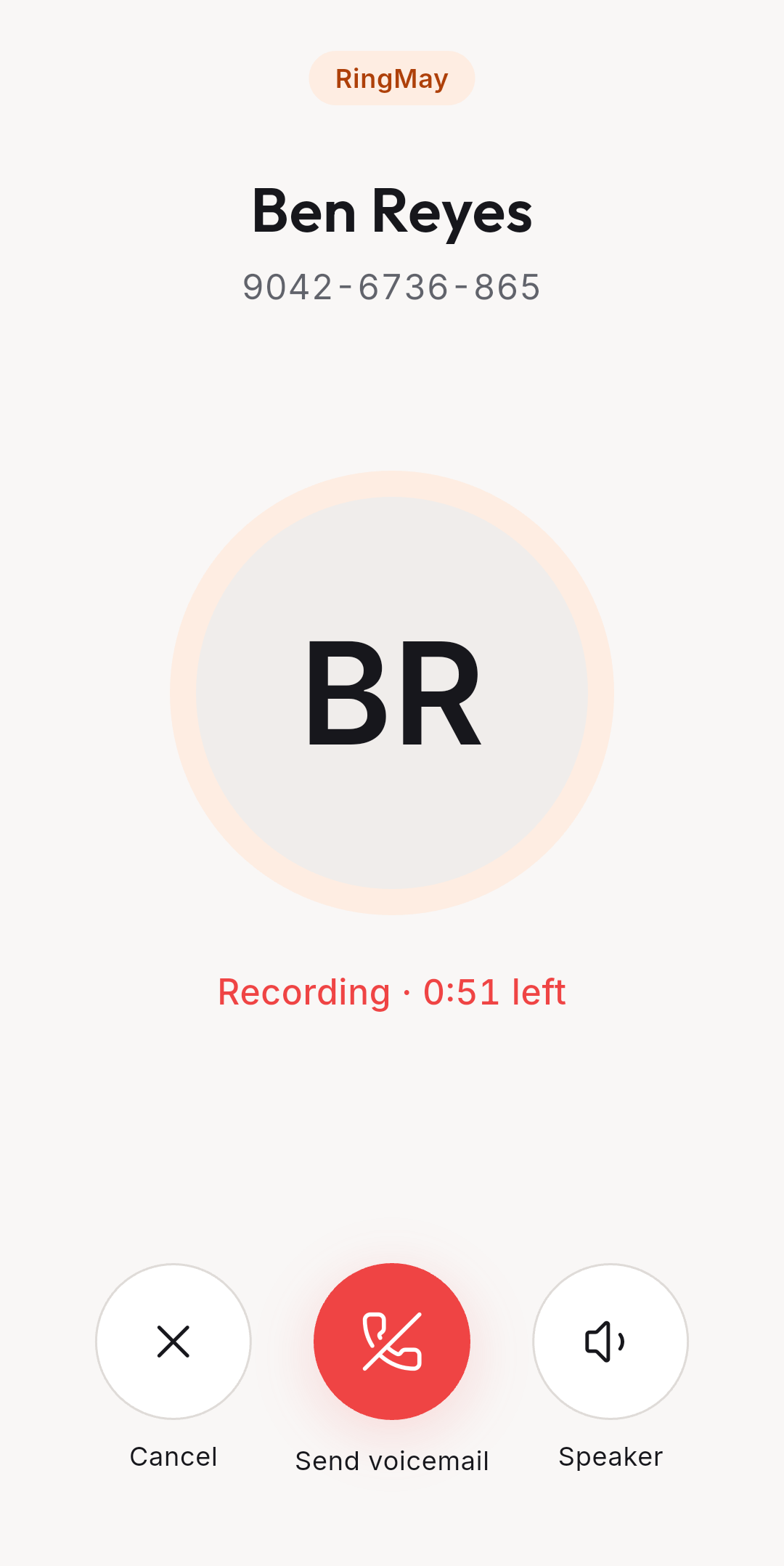
  2. If they do not answer, you can leave a voicemail: speak after the tone, then tap Send voicemail.

How to call a specialist

  1. On Contacts, scroll to My Specialists.
  2. Tap the green call button beside them.
  3. Wait for the pick-up. They speak first.

During a call

  1. Tap Mute to turn your microphone off and on.
  2. Tap Speaker to use the loudspeaker.
  3. Tap the red End call button to hang up.

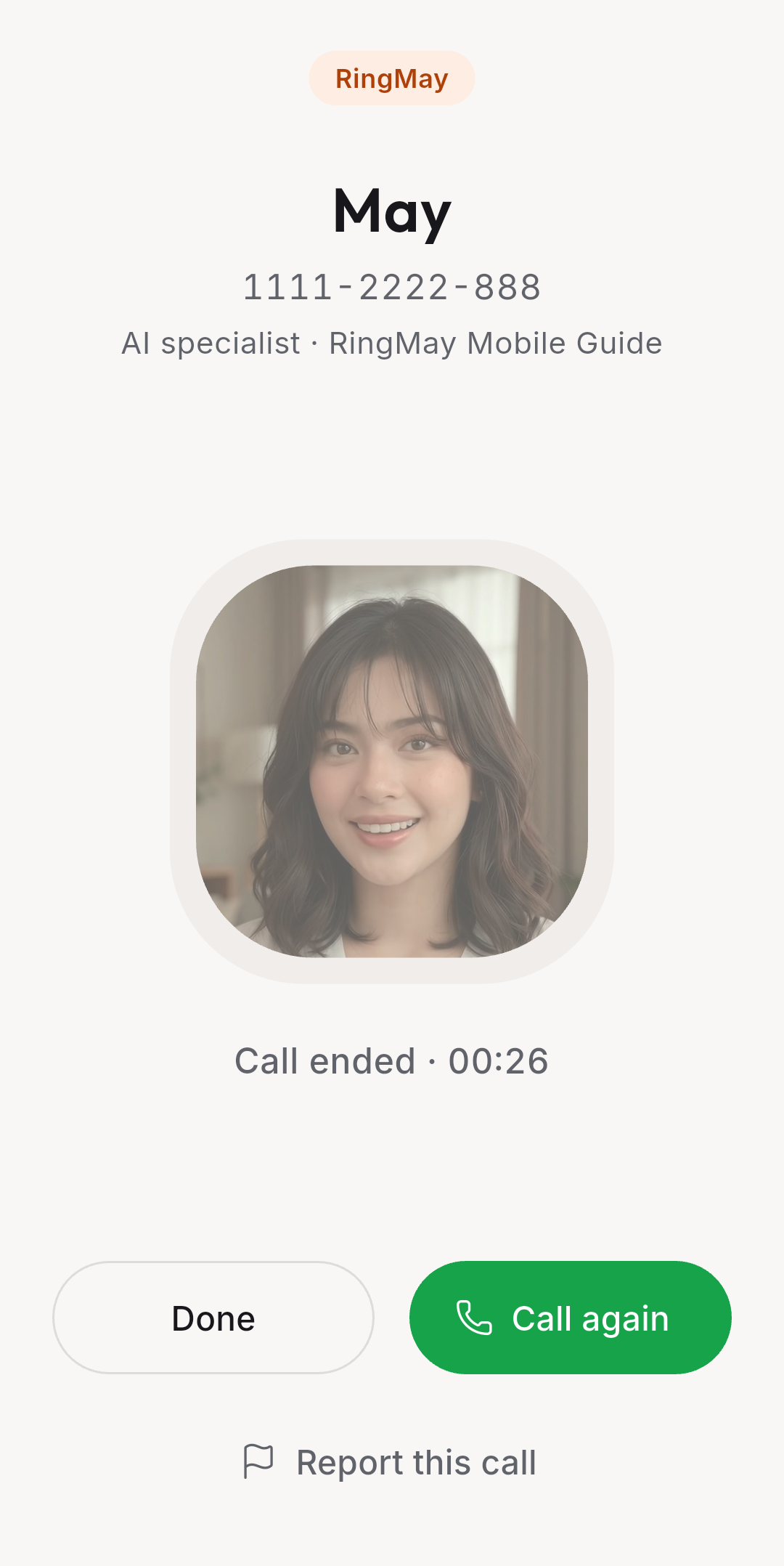
After a call

  1. Tap Done to go back, or Call again.
  2. Tap Report this call if something was wrong.

Specialists give general information only, not professional advice.
9:41●●●
Ringing
Ringing
9:41●●●
May is speaking
Speaking
9:41●●●
Listening to you
Listening
9:41●●●
Call ended
Call ended
9:41●●●
Calling a person
Calling a person
9:41●●●
Leaving a voicemail
Voicemail

PersonalCalls

Receiving a call

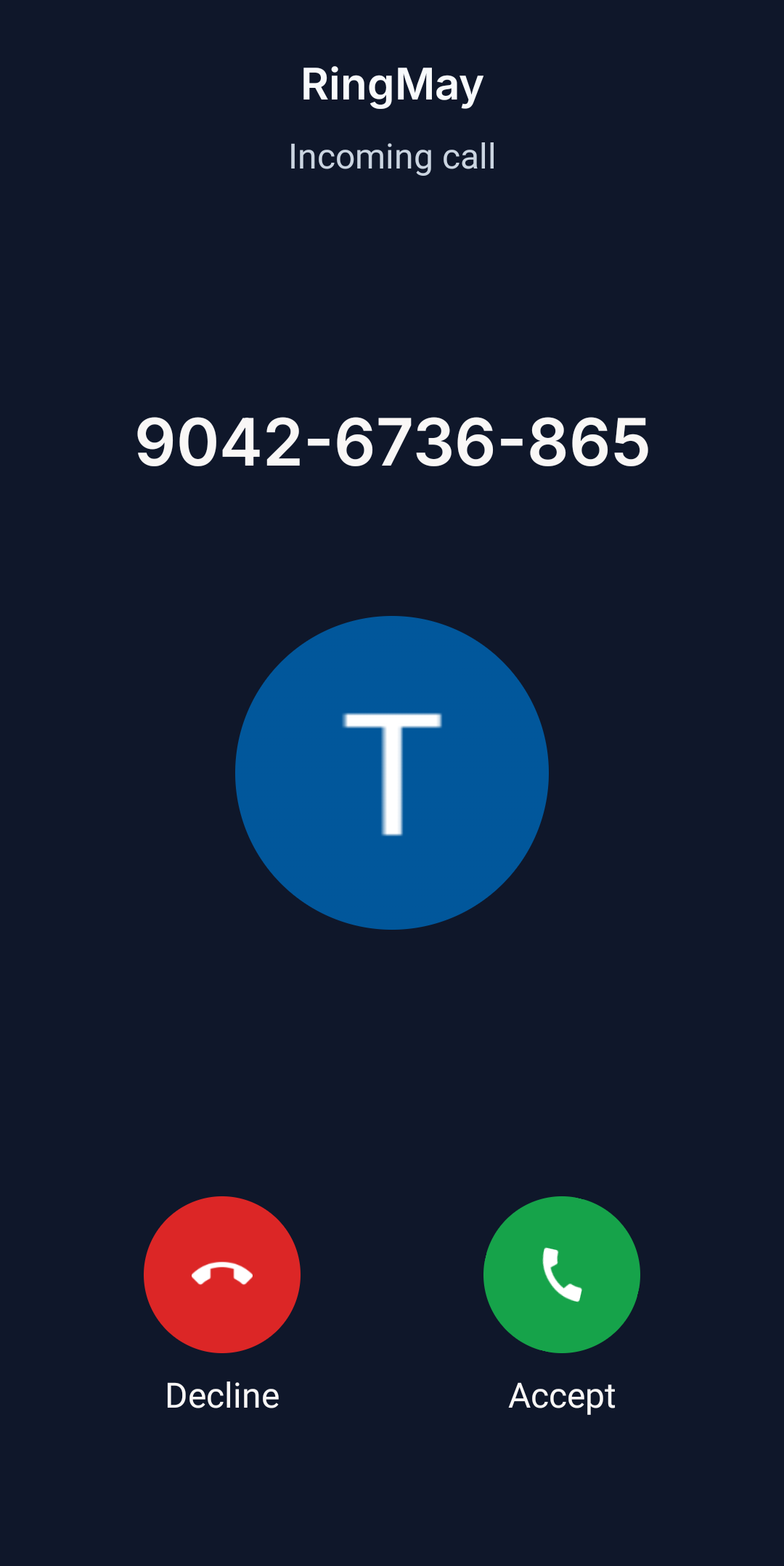
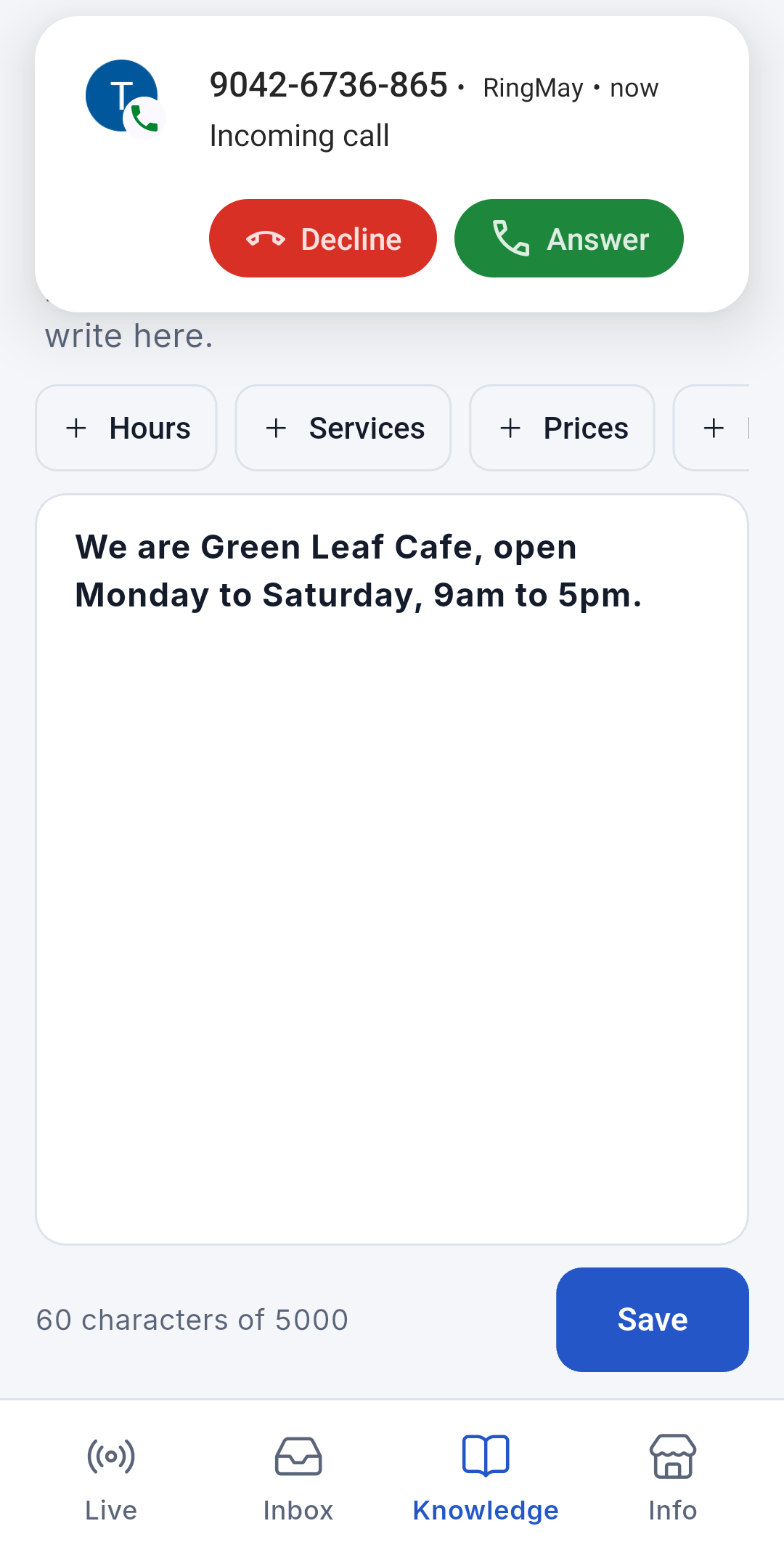
Calls ring like a normal phone call, whether the app is open or closed. On a locked phone the call fills the screen; while you use the phone it shows at the top.

How to answer

  1. Tap Accept (or Answer at the top of the screen).
  2. Tap Decline to send the caller to voicemail.

A missed call appears in Recents and as a notification. Keep Reliable ringing on so calls always come through.
9:41●●●
Incoming call on a locked phone
Locked phone
9:41●●●
Incoming call while using the phone
While using the phone
9:41●●●
On a call
On the call

PersonalCalls

Recents

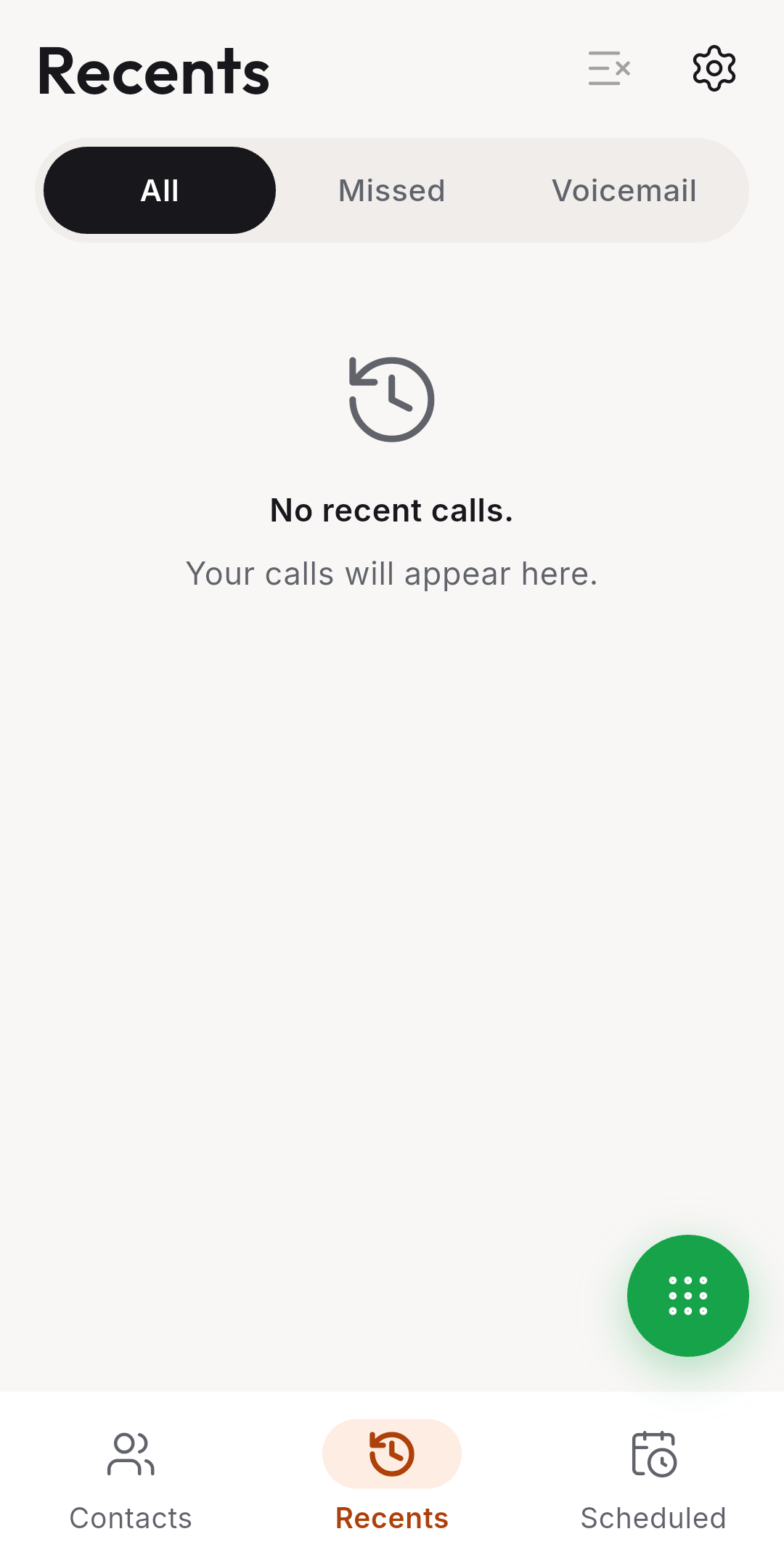
Your call log: calls you made, calls you received, missed calls and voicemails.
How to see missed calls or voicemail

  1. Tap Missed or Voicemail at the top.

How to call back

  1. Tap the call button on a row.

How to clear the list

  1. Tap the clear icon at the top right.
9:41●●●
Recents

PersonalCalls

Assistant calls

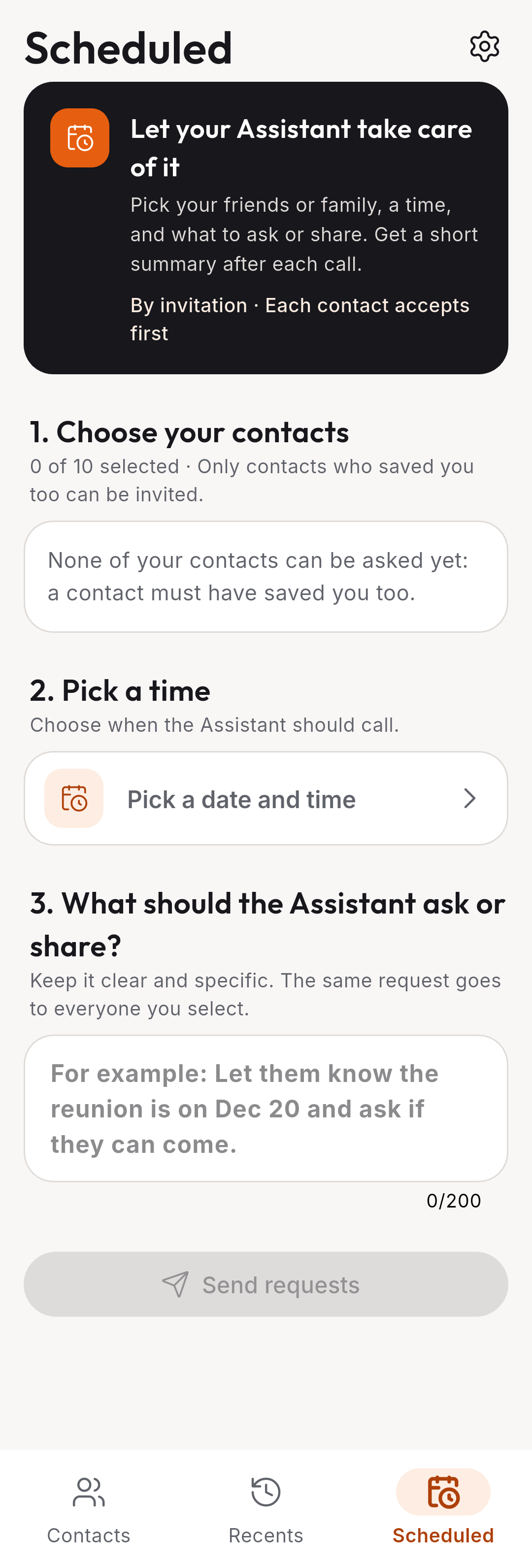
Let your Assistant call friends or family for you at a set time. It asks or shares what you wrote, then gives you a short summary. Only contacts who saved you too can be called this way.
How to schedule an Assistant call

  1. Open the Scheduled tab, or tap Schedule an Assistant call on a contact.
  2. Choose your contacts (up to 10).
  3. Pick a date and time.
  4. Write what to ask or share.
  5. Tap Send requests.
9:41●●●
Scheduled tab
Scheduled tab

PersonalCalls

Your AI specialists

They are always in your contacts, ready to help when you have questions.

Who are they?

May, the RingMay Mobile Guide. Attorney Rafael for legal questions, Doctor Clara for health, Engineer Andrea for engineering, Teacher Sofia, Coach Nico for your career, Coach Marco for money, Coach Elena for relationships, Tutor Alex for English and interviews, Pharmacist Bea, and Chef Miguel for home cooking.

Questions about the app?

Call May, first in My Specialists. She is free for a few minutes a day once you sign in. If she can't answer, she passes your question to the RingMay team. You can also email hello@ringmay.ai.

How do I call them?

Open My Specialists on the Contacts tab, and tap the call button on their row.

Can they call me?

Yes, the specialists with Book a call back. Pick a day and time.

Is there video?

Yes. Video specialists show a video camera icon on their row. Video uses credits.

How do they help?

They answer your questions and help you understand your situation. For important decisions, also consult your own doctor or attorney.

PersonalAccount

Settings

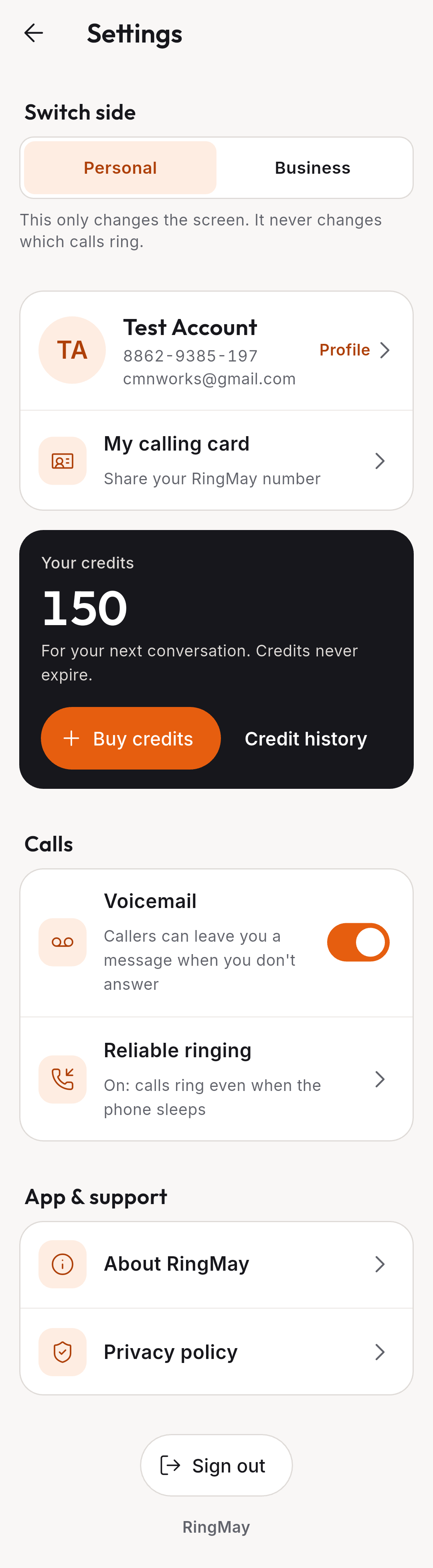
Your account, credits, call options and help, all in one place. Open it with the gear icon at the top right.
How to switch side

  1. Tap Personal or Business under Switch side.

How to turn voicemail on or off

  1. Use the Voicemail switch. When on, callers can leave a message when you don't answer.

How to sign out

  1. Scroll down and tap Sign out.
9:41●●●
Settings

PersonalAccount

Profile

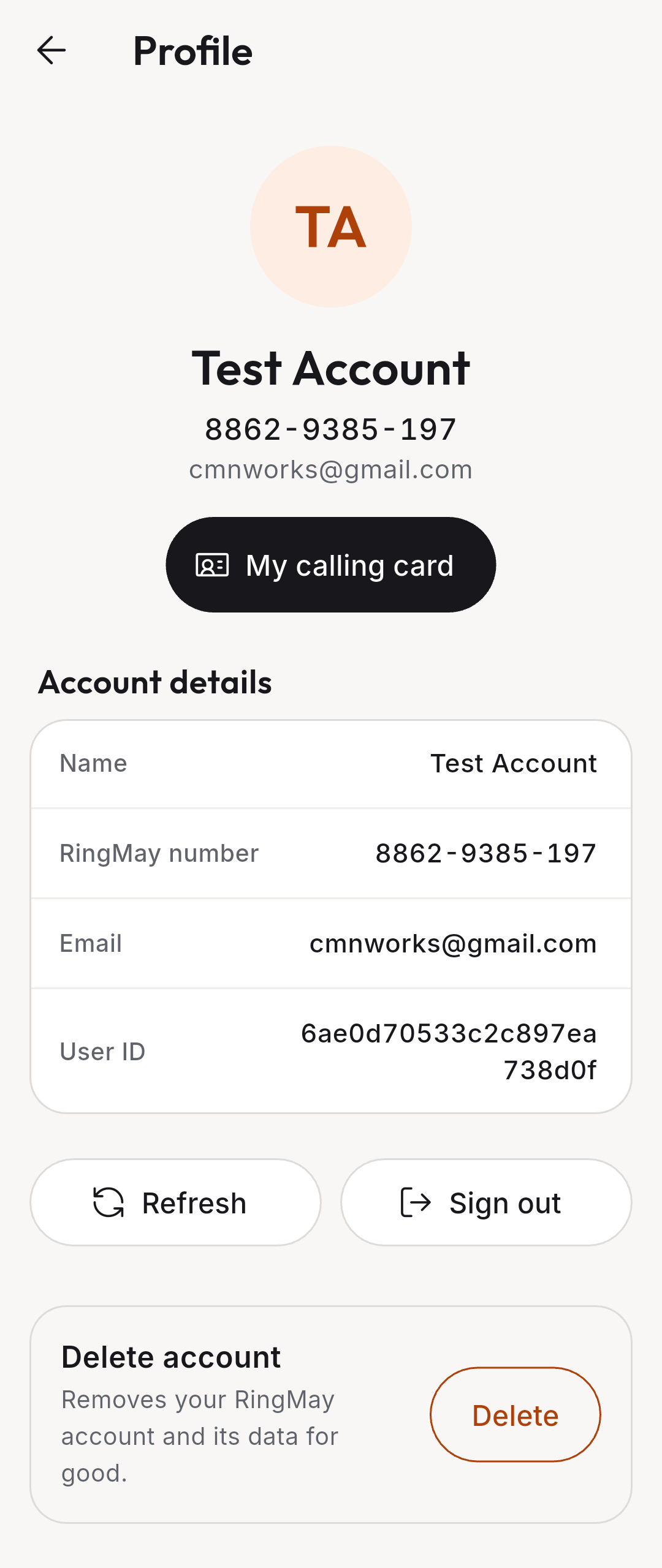
Your name, RingMay Number and email. This is also where you delete your account.

How to open your profile

  1. In Settings, tap your name.

How to delete your account

  1. Tap Delete under Delete account.

Deleting removes your RingMay account and its data for good.
9:41●●●
Profile

PersonalAccount

My calling card

A small card with your name, RingMay Number and a QR code. Share it so people can save you in one scan.
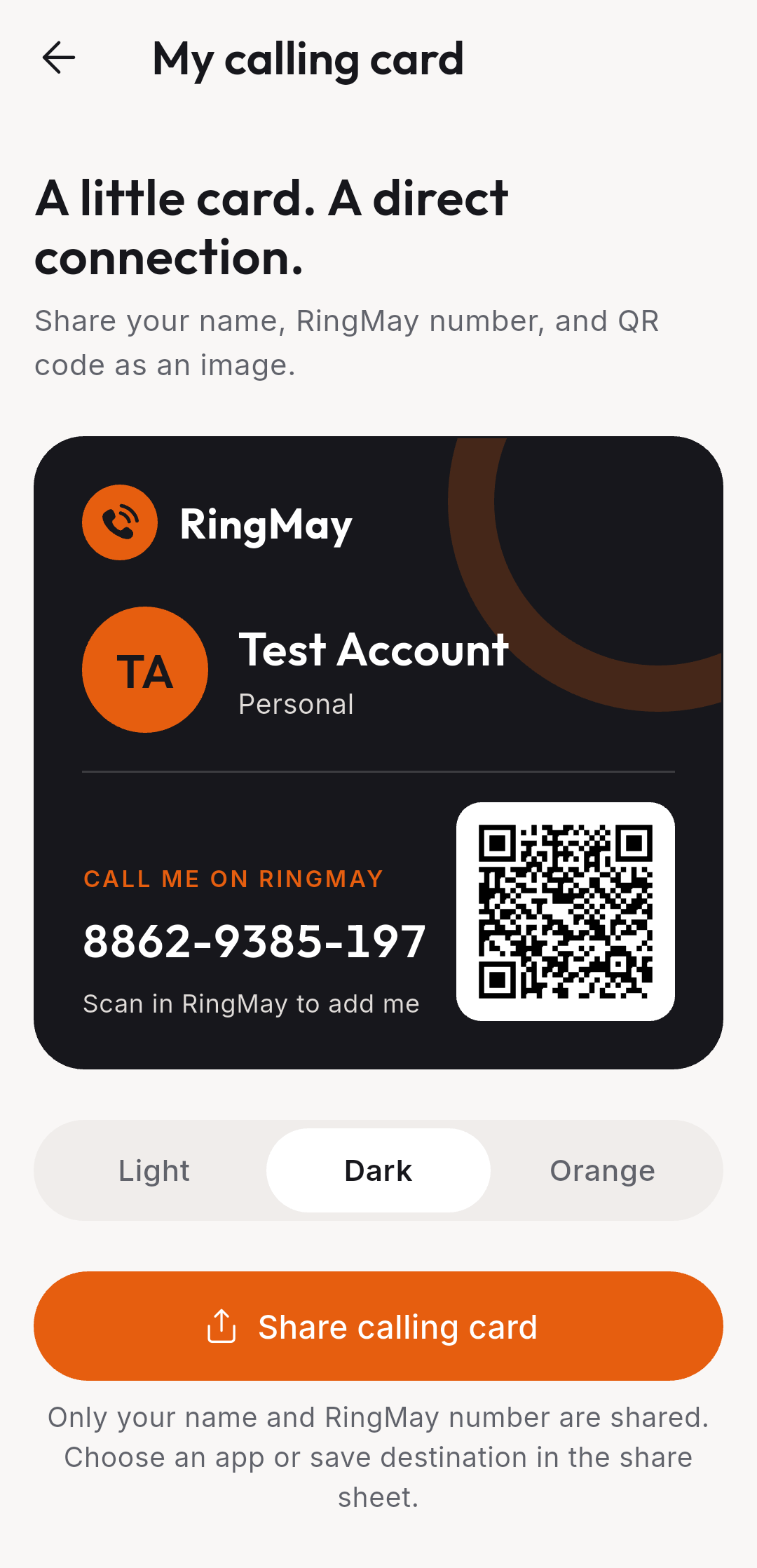
How to share your card

  1. In Settings, tap My calling card.
  2. Pick a style: Light, Dark or Orange.
  3. Tap Share calling card and choose an app.
9:41●●●
My calling card

PersonalAccount

Credits

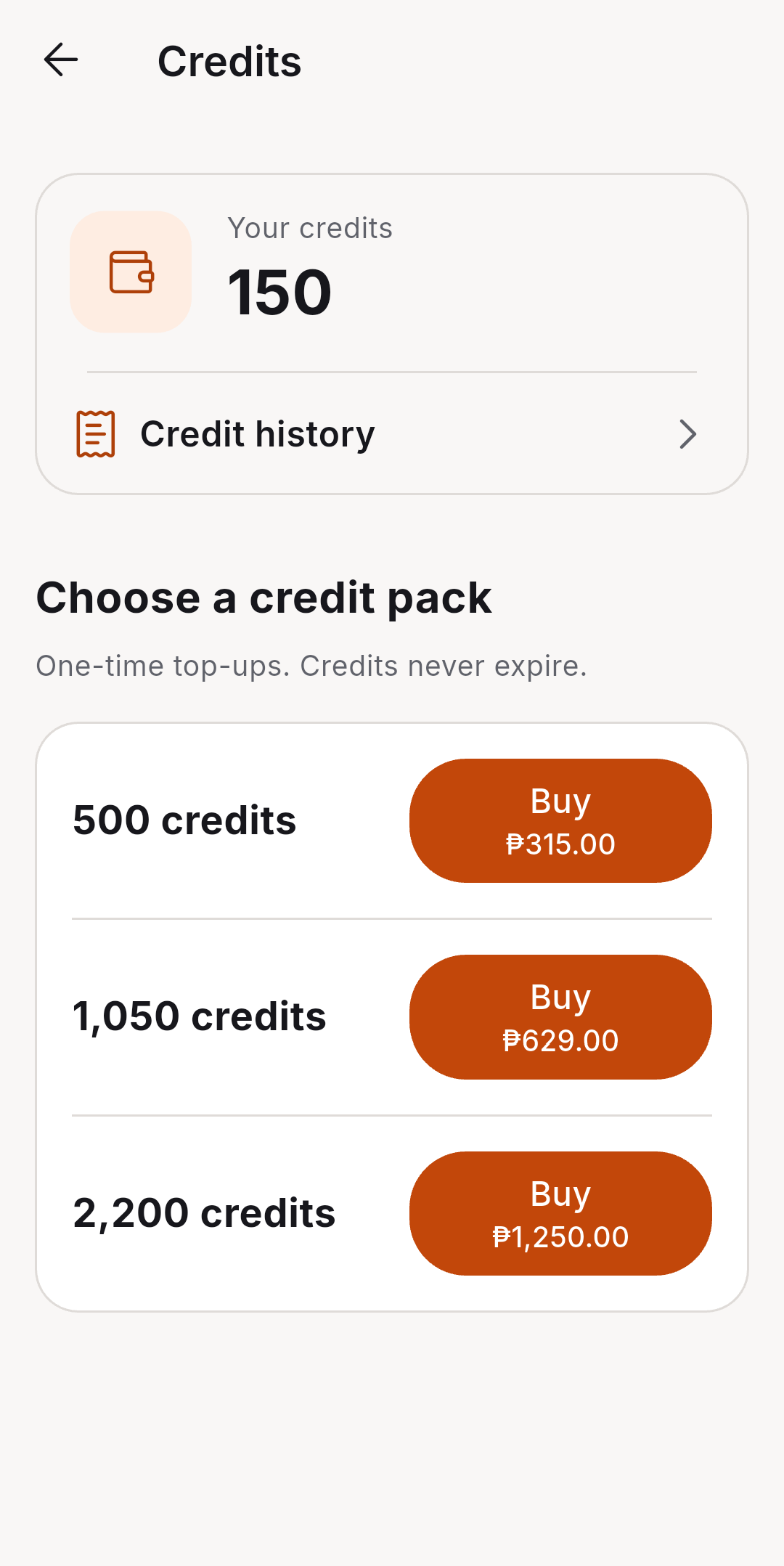
Credits pay for calls that cost something, such as calls to mobile numbers, AI specialists and video. New accounts get free credits. Credits never expire.

How to buy credits

  1. In Settings, tap Buy credits.
  2. Pick a pack and tap Buy.

How to see where credits went

  1. In Settings, tap Credit history.
  2. Tap Purchases to see only top-ups.

Calls to other RingMay users are free.
9:41●●●
Buy credits
Buy credits
9:41●●●
Credit history
Credit history

BusinessGetting started

How the Business side works

You set it up once and share your Business Card. Customers call, May answers, and you follow along on Live and in the Inbox.

1 Set up Sign in with Google, name your business. Your Business Number is free. 2 Teach May Write your hours, services, prices and location in Knowledge. 3 Share your Business Card Your Business Number, link and QR code. Online, in your shop, or to customers. what May knows number, link or QR Live Watch each call as it happens, with what is said. End call ends it for the caller too. May answers She answers from Knowledge only. Your phone stays quiet while she talks. Credits are used per minute she answers. YOUR CUSTOMERS Mobile Call A customer in the RingMay app dials your Business Number. Web Call A customer opens your link in any browser and taps Call. No app, no account. during after the call Notifications Updates such as a saved Knowledge Base or a low credit balance. Inbox Every call May answered, with what was said. Business Settings Receive calls on or off. Buy credits.

BusinessGetting started

How May helps your business

Someone always answers

May answers every call to your Business Number and your Business Card link, day and night.

The right answers

She answers only from what you wrote in Knowledge, and never invents a price, a time or a promise.

Orders and questions

She listens to an order, a question, a complaint or feedback, and asks for the customer's name and a number to reach them.

You know what happened

Every call lands in your Inbox with what was said, so you know what to do next.

May answers in English.

BusinessGetting started

Business sign-in

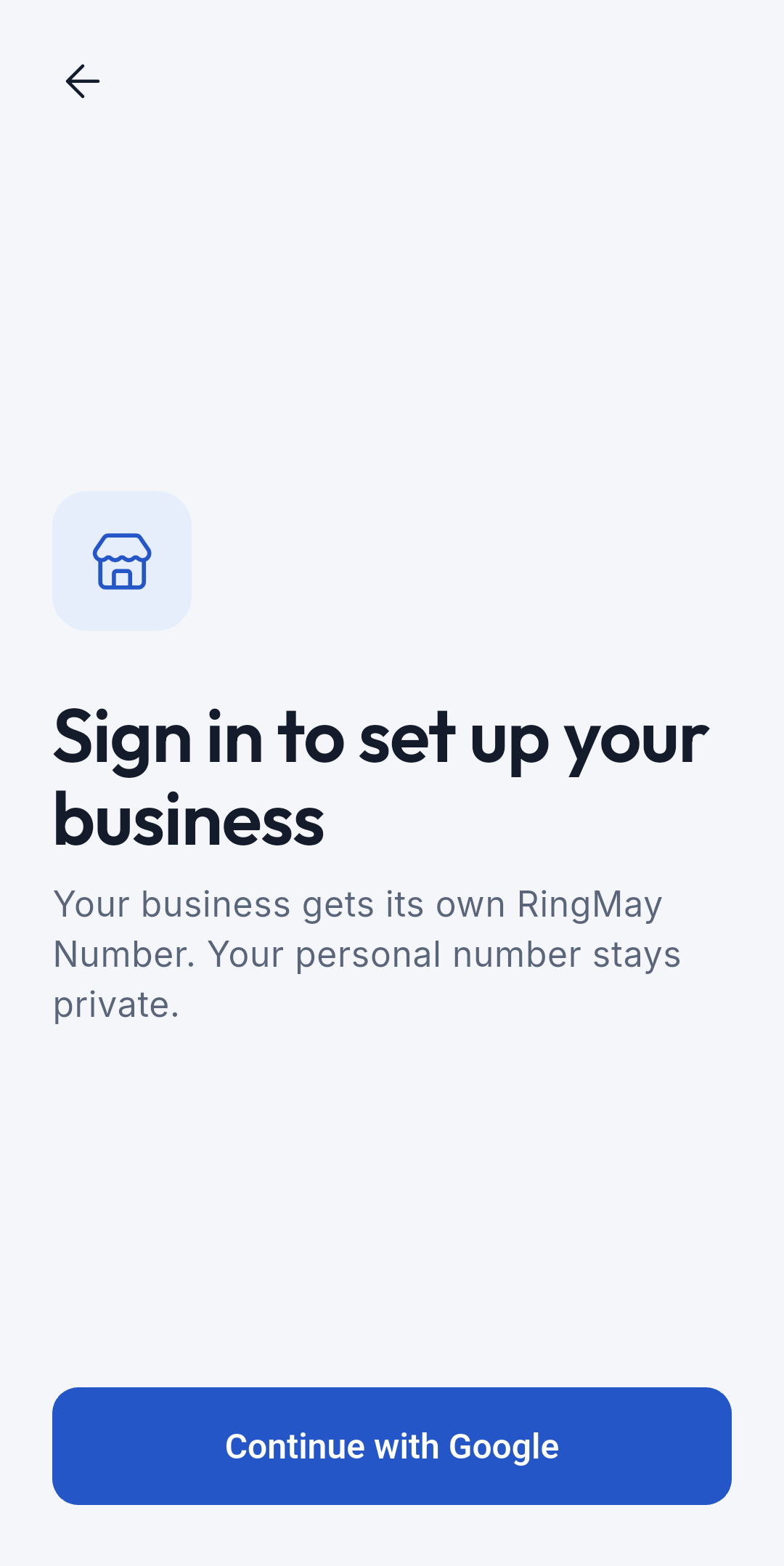
The Business side needs an account. Your business gets its own RingMay Number, so your personal number stays private.

How to set up your business

  1. Choose Business on the first screen, or in Settings under Switch side.
  2. Tap Continue with Google.
  3. Enter your business name, then get your Business Number. It's free.

A business has one owner: the person who sets it up.
9:41●●●
Business sign-in

BusinessGetting started

Business setup

Your first time on the Business side: name your business and get its own Business Number. May answers every call to it. Your personal number stays private and rings as usual.

How to set up your business

  1. Open the Business side and tap Continue with Google.
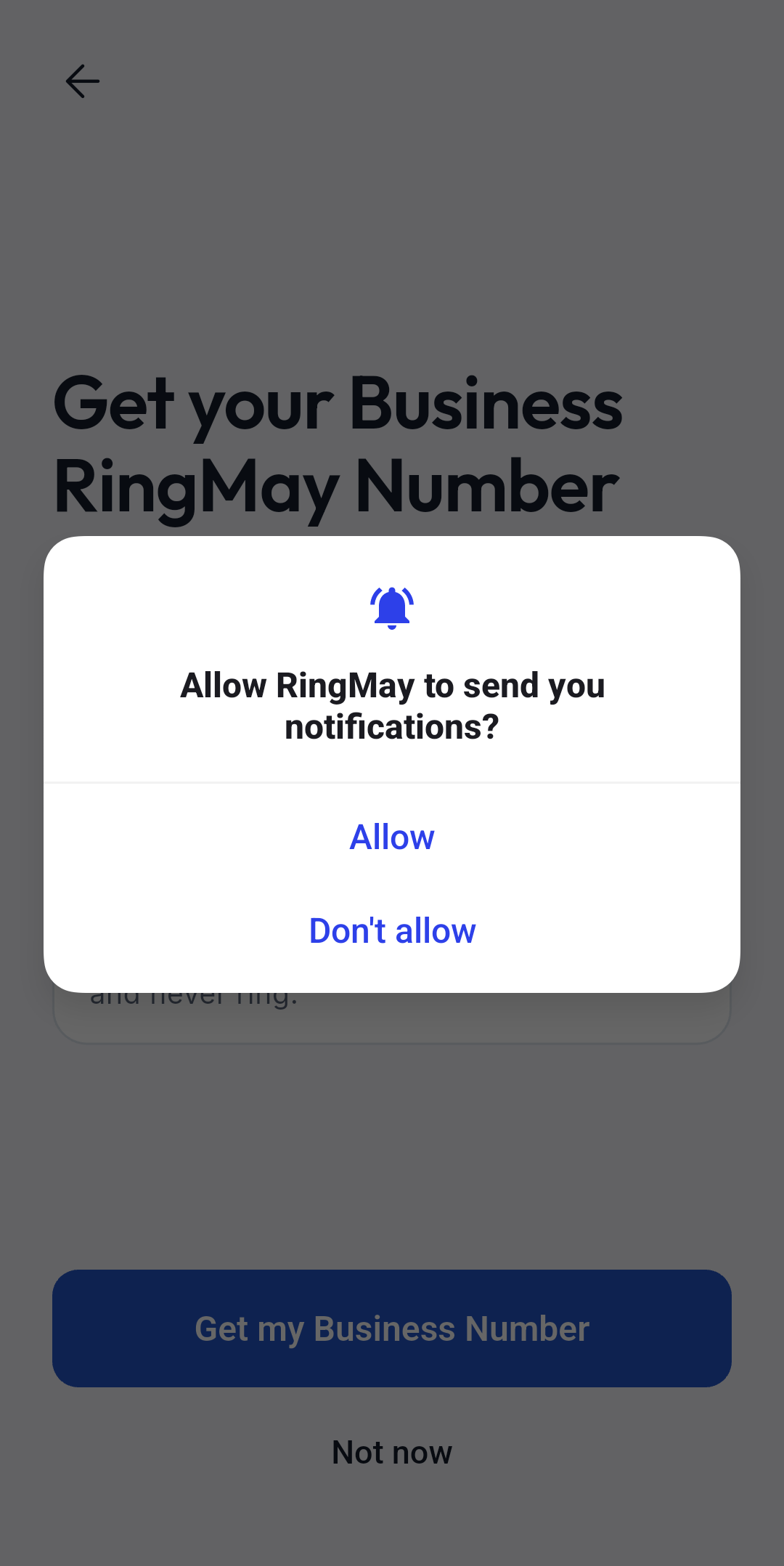
  2. Tap Allow when asked about notifications, so you hear about new calls.
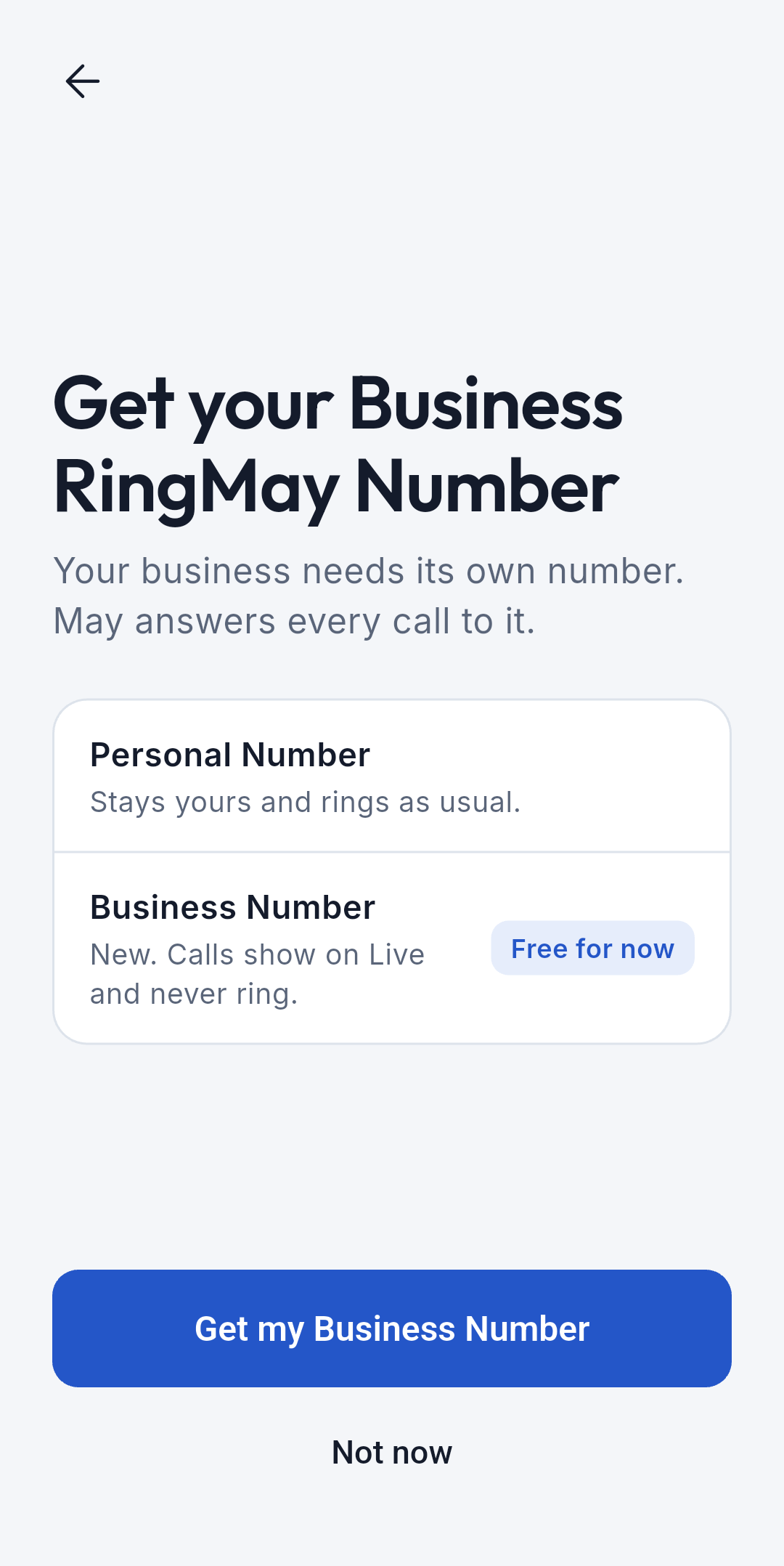
  3. Tap Get my Business Number.
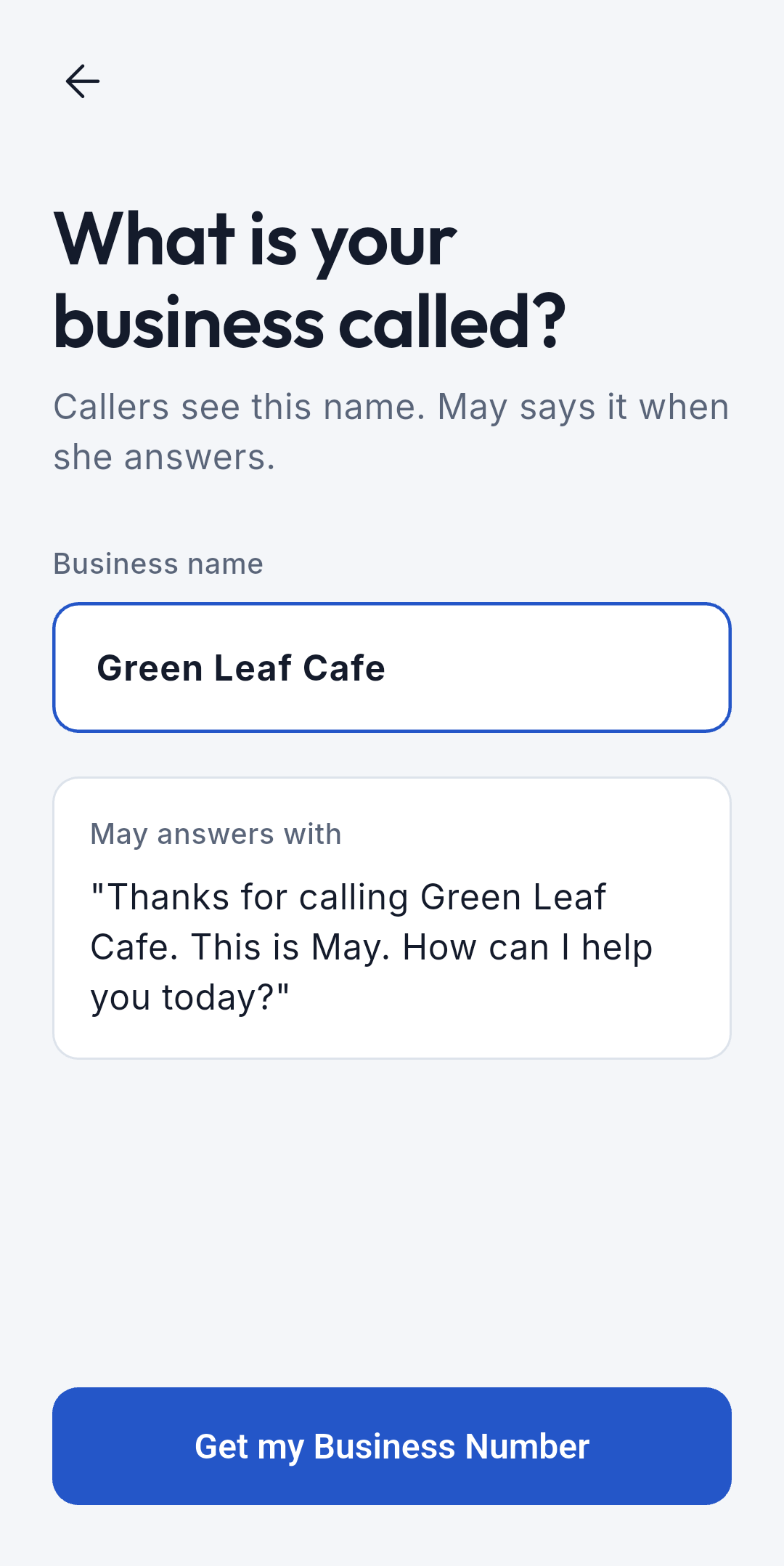
  4. Type your business name. May says it when she answers. Tap Get my Business Number again.
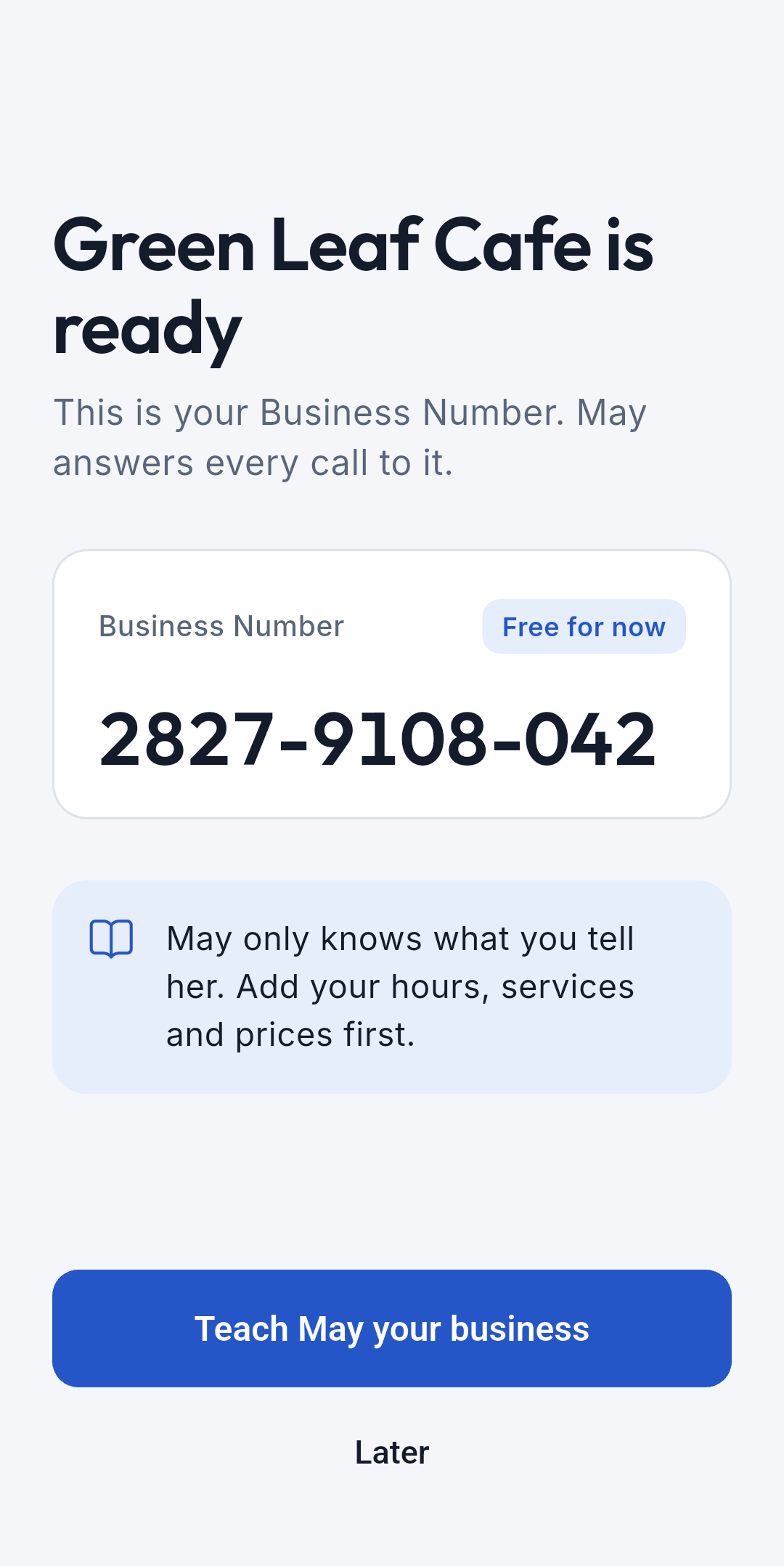
  5. Your Business Number is ready.
  6. Tap Teach May your business, write your hours, services and prices, then tap Save.

The Business Number is free. Calls to it show on Live and never ring your phone.
9:41●●●
Allow notifications
Allow notifications
9:41●●●
Get your Business Number
9:41●●●
Name your business
Name your business
9:41●●●
Your business is ready
Ready
9:41●●●
Teach May
Teach May

BusinessCalls

Live

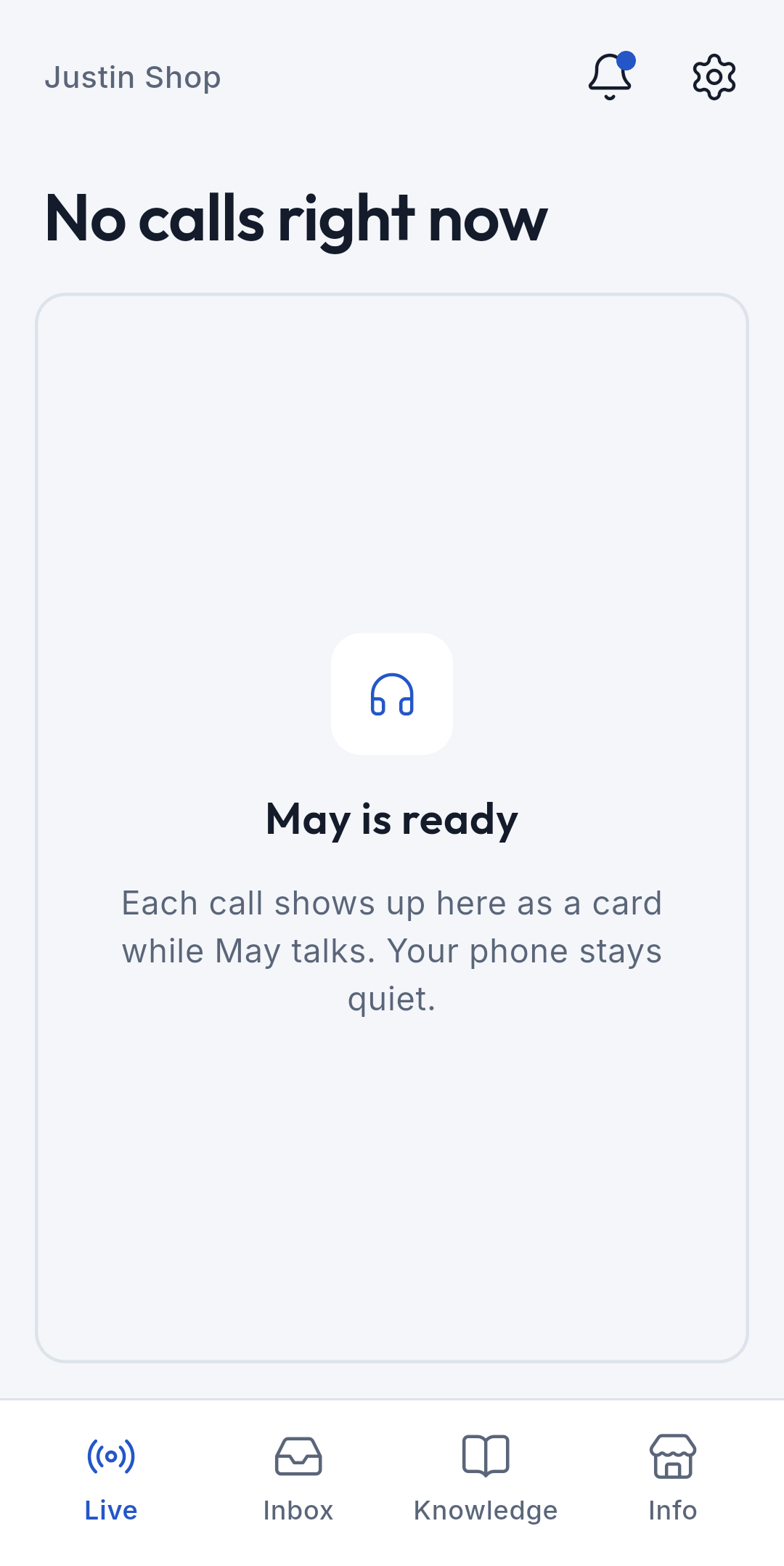
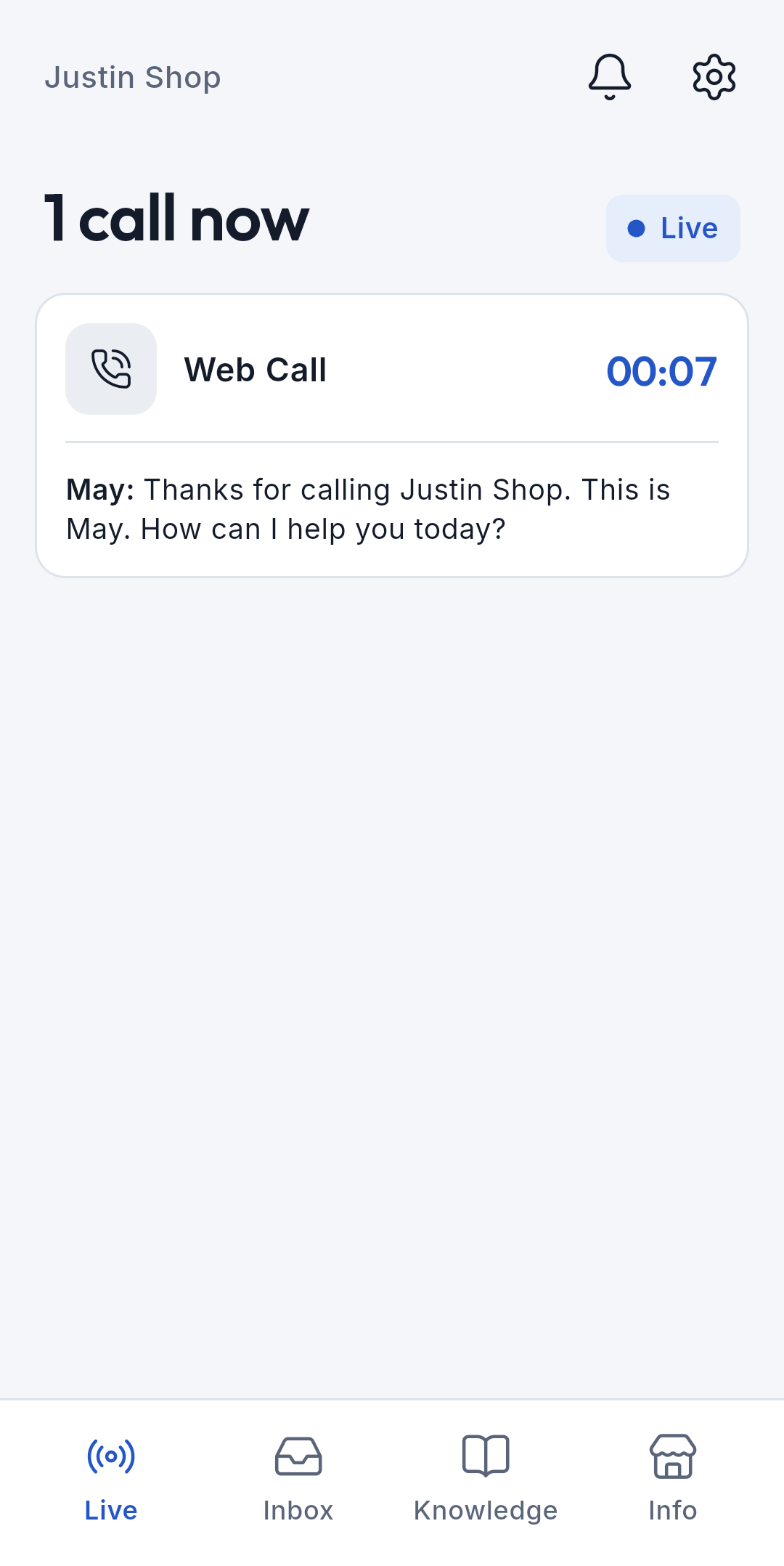
Shows the calls May is answering right now, one card per call. Your phone stays quiet while May talks.

How to watch a call

  1. Open the Live tab. Each call shows who is calling, how long, and May's latest words.
  2. Tap the call to follow what is said as it happens.

How to end a call

  1. Open the call and tap End call. It ends for the caller too.

A very short ring plays when a new call comes in while Live is open. It follows your ring volume, so silent mode keeps it quiet.

May answers every call herself, even several at once. You can watch and end a call, but you can't take it over.

"May is ready" means May is answering your Business Number. If it says "Receive calls is off", turn it on in Business Settings.
9:41●●●
Live, no calls
No calls
9:41●●●
Live, one call
A call in progress
9:41●●●
Live call
Watching the call
9:41●●●
Call ended
Call ended

BusinessCalls

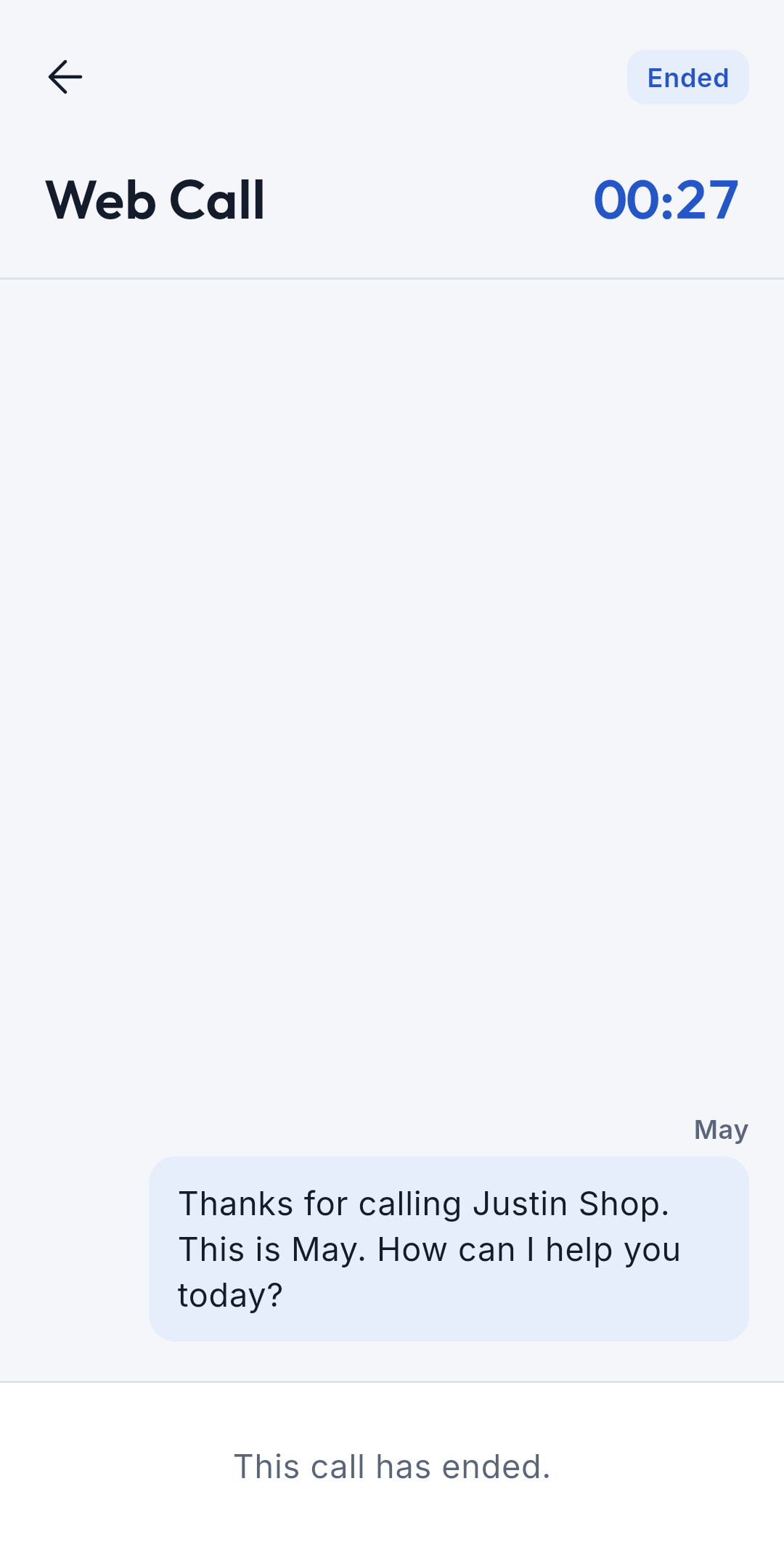
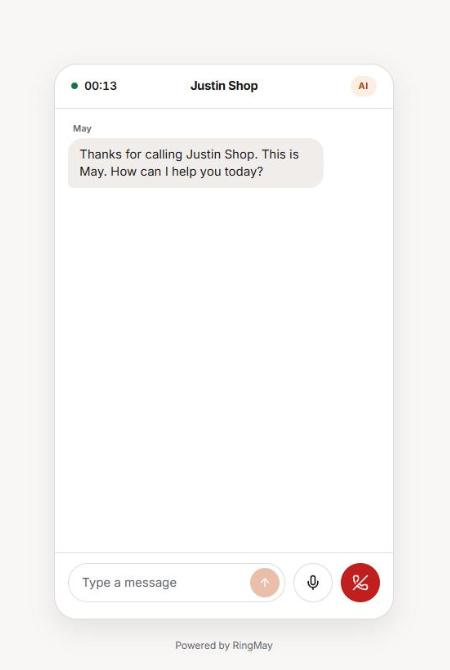
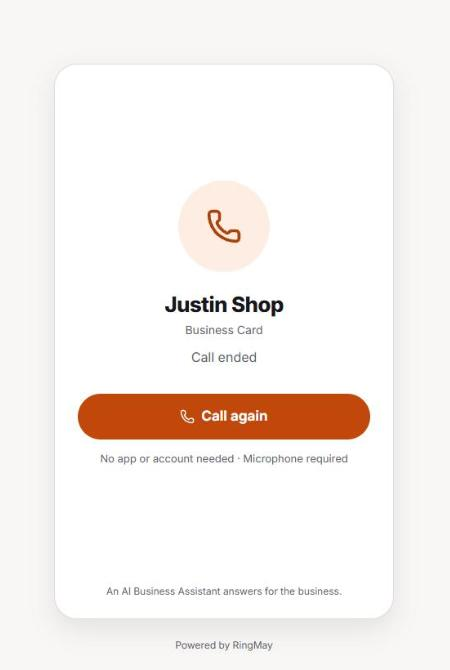
Web Call: what your customer sees

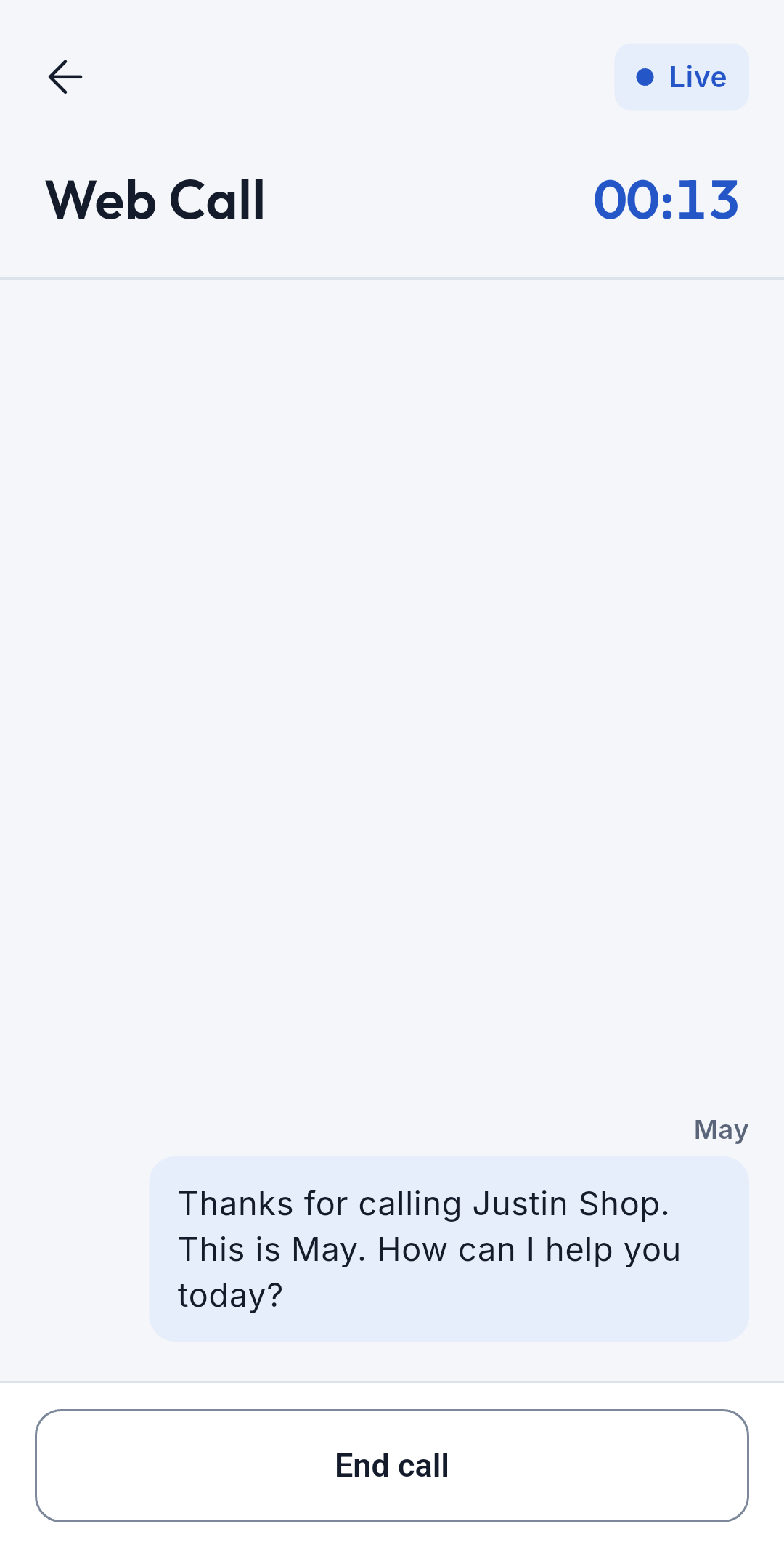
Your shared link opens in any browser. The customer taps Call and talks to May. No app, no account, only a microphone.

What the customer does

  1. Opens your link and taps Call.
  2. Allows the microphone when the browser asks.
  3. Talks to May, or types a message in the box.
  4. Taps the red button to hang up, or Call again afterwards.

While they talk, the call shows on your Live tab and lands in your Inbox afterwards.
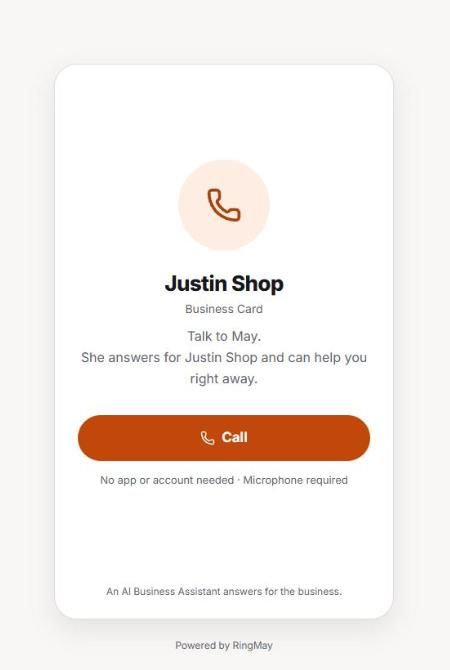
The Business Card page
Your link
On the call with May
On the call
Call ended
After the call

BusinessCalls

Inbox

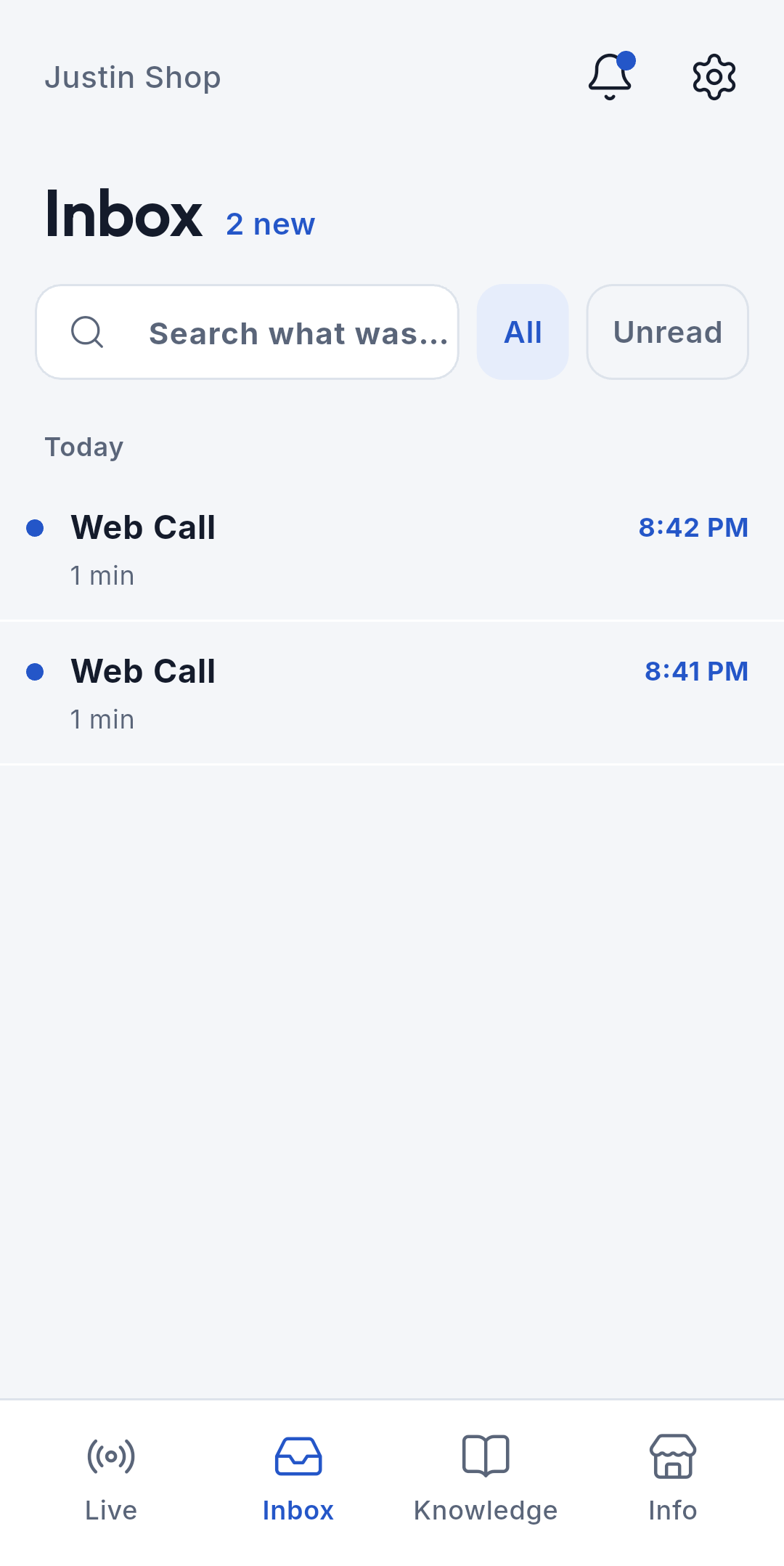
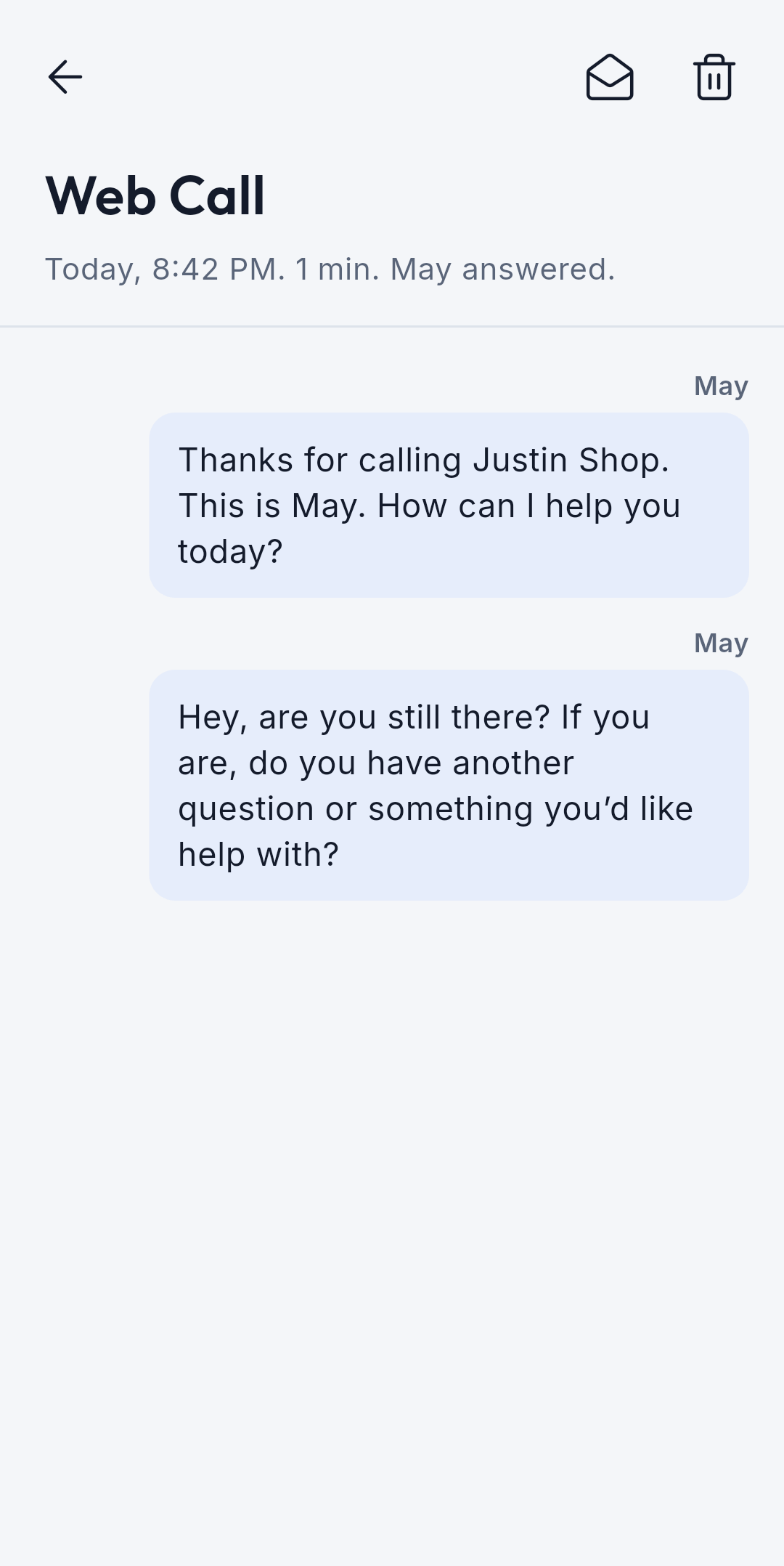
Every call May answered, with what was said. Calls from the RingMay app show as Mobile Call, or by the caller's number when they are signed in. Calls from your shared link show as Web Call.
How to read a call

  1. Open the Inbox tab and tap a call. A blue dot marks a call you have not read.

How to mark it unread or delete it

  1. Open the call and tap the envelope or the bin at the top.

How to see only new calls

  1. Tap Unread.

How to find a call

  1. Type in Search.
9:41●●●
Inbox
Inbox
9:41●●●
A call in the Inbox
What was said

BusinessYour business

Knowledge

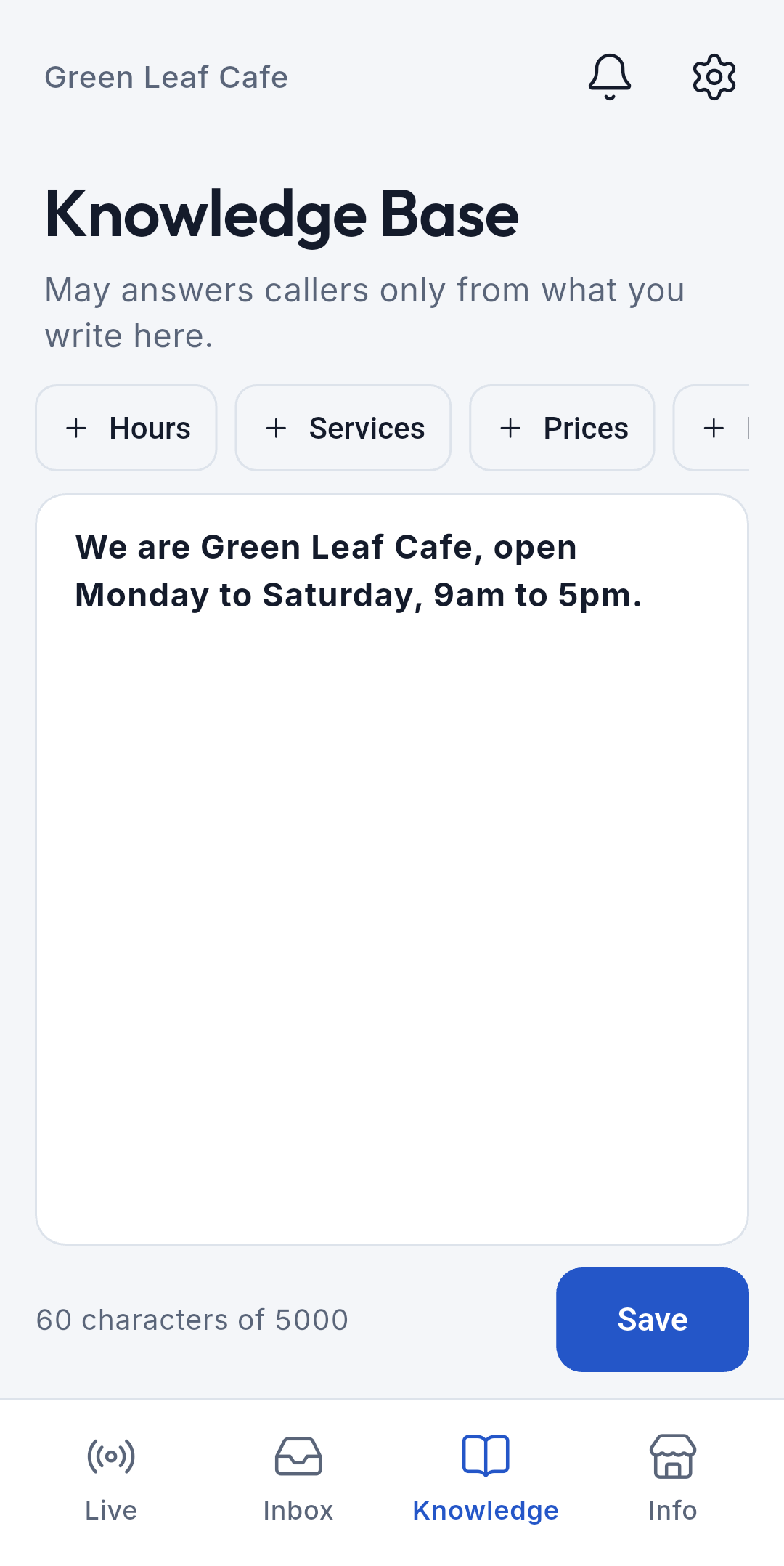
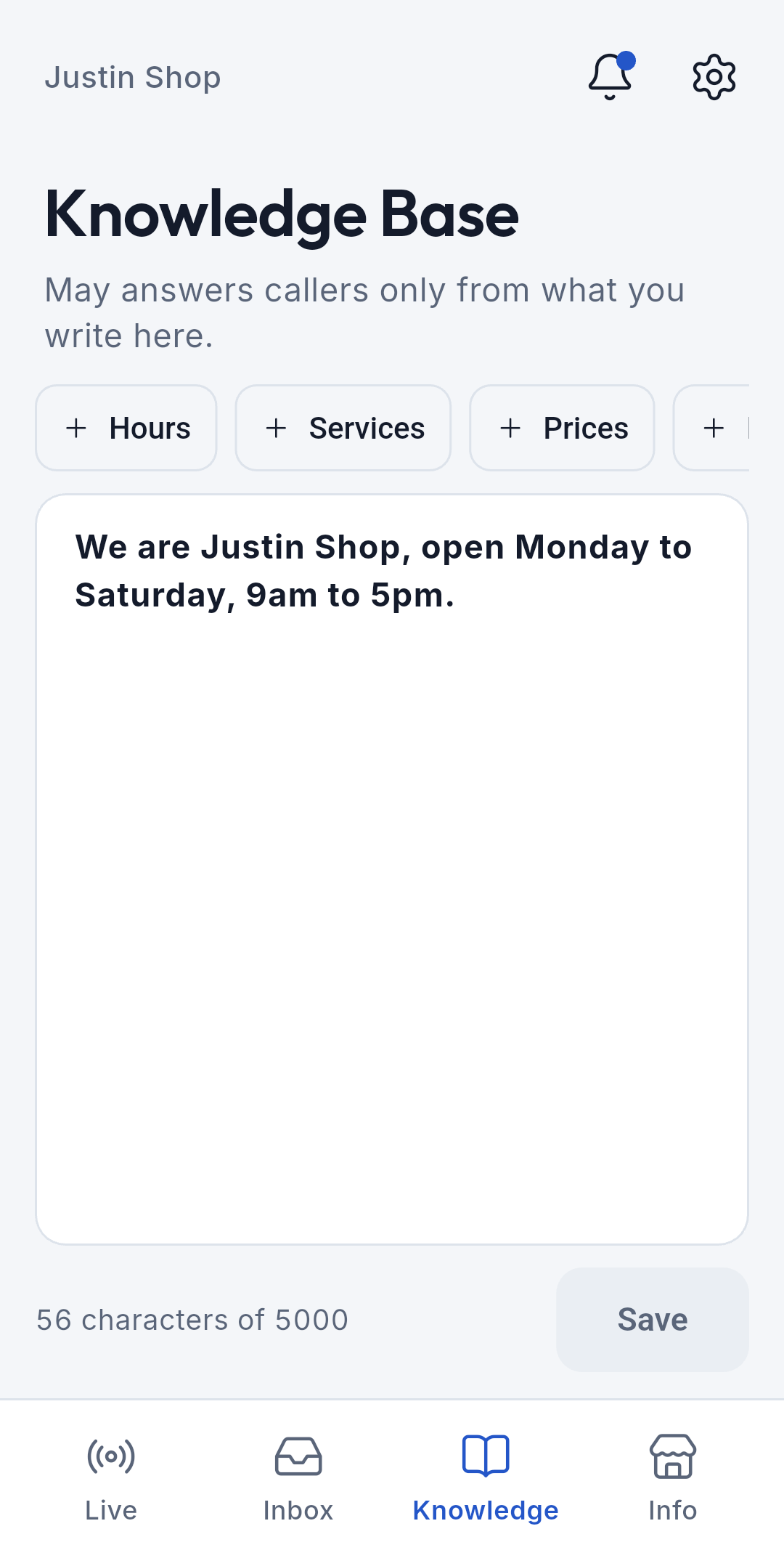
What May knows about your business. May answers callers only from what you write here, so keep it clear and up to date. It holds up to 5,000 characters.
How to teach May

  1. Open the Knowledge tab.
  2. Write your hours, services, prices and location.
  3. Tap Save. May uses it on the next call.
9:41●●●
Knowledge

BusinessYour business

What to write for May

Plain sentences work best. These are examples.

About the business

Example: We are a dental clinic in Quezon City.

Hours

Example: We are open Monday to Saturday, 9am to 5pm.

Services and prices

Example: Cleaning is 800, and a consultation is 500.

Orders or bookings

Example: Tell us the day and time you want, and we will call you to confirm.

Payment and delivery

Example: We accept cash and online payment.

What you do not do

Example: We do not do home visits.

When the answer is not in Knowledge, May does not guess. She says you will get back to them, and asks for their name and a number to reach them.

BusinessYour business

Business Info and Card

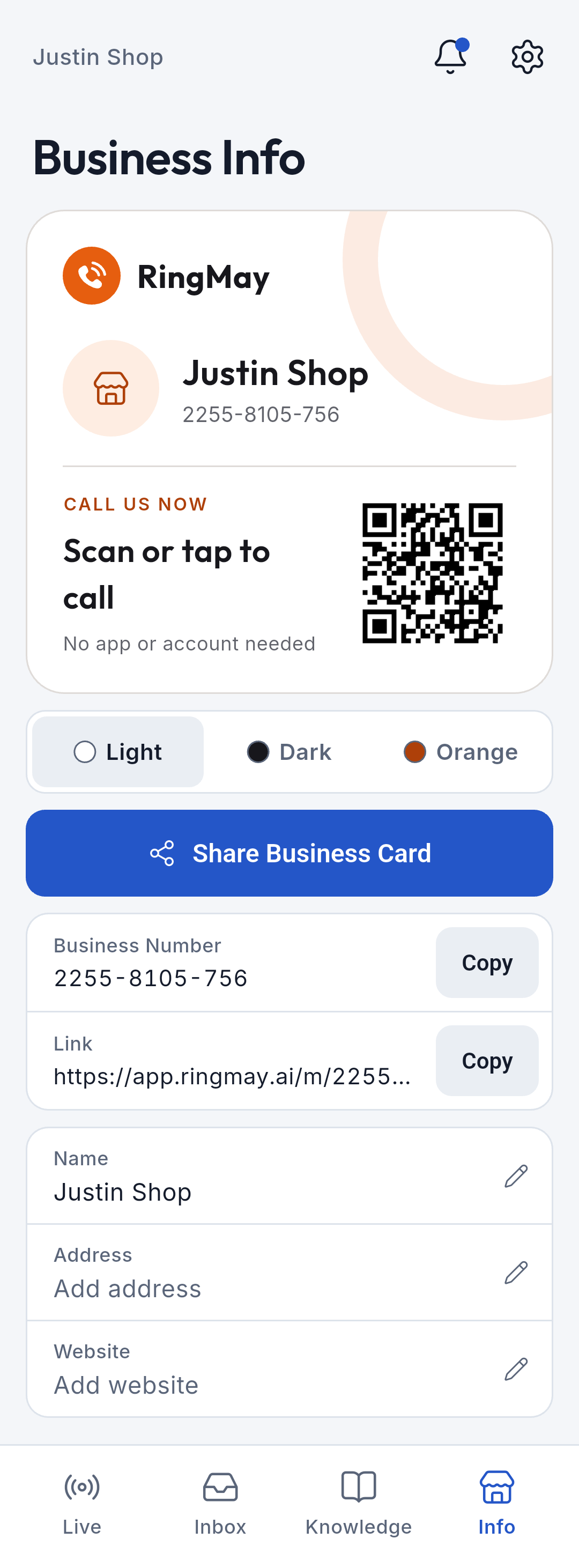
Your Business Card, Business Number and link. Anyone can scan or tap the card to call your business. No app or account needed.
How to share your Business Card

  1. Open the Info tab.
  2. Pick a style: Light, Dark or Orange.
  3. Tap Share Business Card.

How to copy your number or link

  1. Tap Copy next to Business Number or Link.

How to edit your details

  1. Tap the pencil next to Name, Address or Website.
9:41●●●
Business Info

BusinessYour business

Where to put your Business Card

Online

On your Facebook page, website, Google listing or the bio of your social media.

In the shop or office

Print the QR code for the counter, the door, the menu, a tarpaulin, flyers or receipts.

Straight to customers

Send the link or a picture of the card by chat, text or email.

On the Info tab, pick Light, Dark or Orange, then tap Copy or Share Business Card.

BusinessYour business

Business Card questions

Is the card permanent?

Yes. The link and QR code are based on your Business Number, so they stay the same when you edit your details.

Does it need internet?

The customer does. Your phone does not: May answers on her own, even when your phone is off.

Does the app need to be open?

No. May answers every call, and your phone never rings for Business calls. Open Live when you want to follow a call.

Does the customer need to install or sign in?

No. They open the link or scan the QR code, tap Call, and allow the microphone.

Can the customer save the card?

Yes. They can save the link or a picture of the card on their phone.

Who pays for the call?

You do, in credits, for each minute May answers. The Business Number itself is free.

BusinessYour business

Notifications

Updates about your business, such as a saved Knowledge Base or a low credit balance.
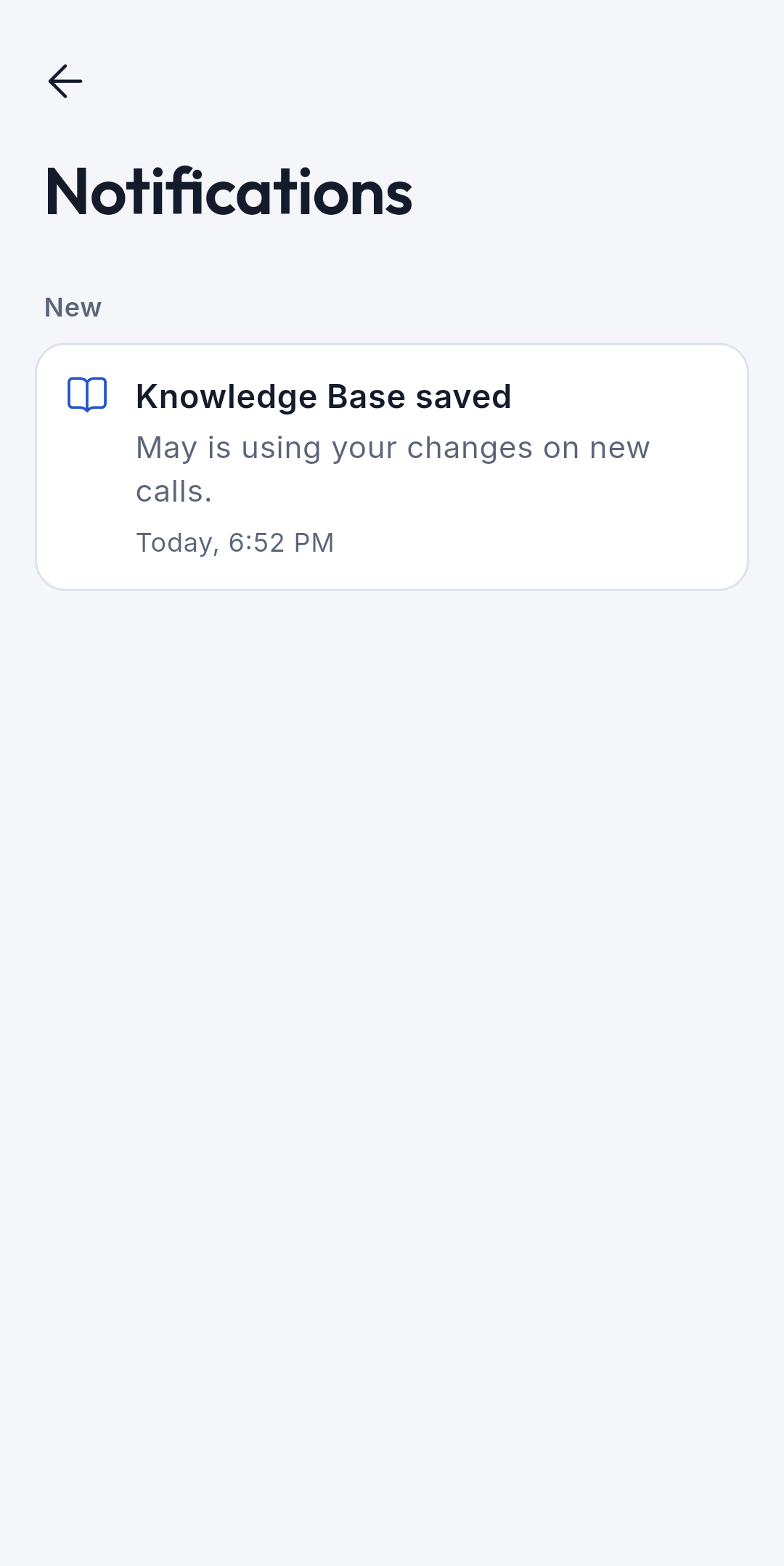
How to open notifications

  1. Tap the bell at the top. A dot means something new.
9:41●●●
Notifications

BusinessYour business

Business Settings

Your account, credits and the Receive calls switch. May uses credits for each minute she answers.
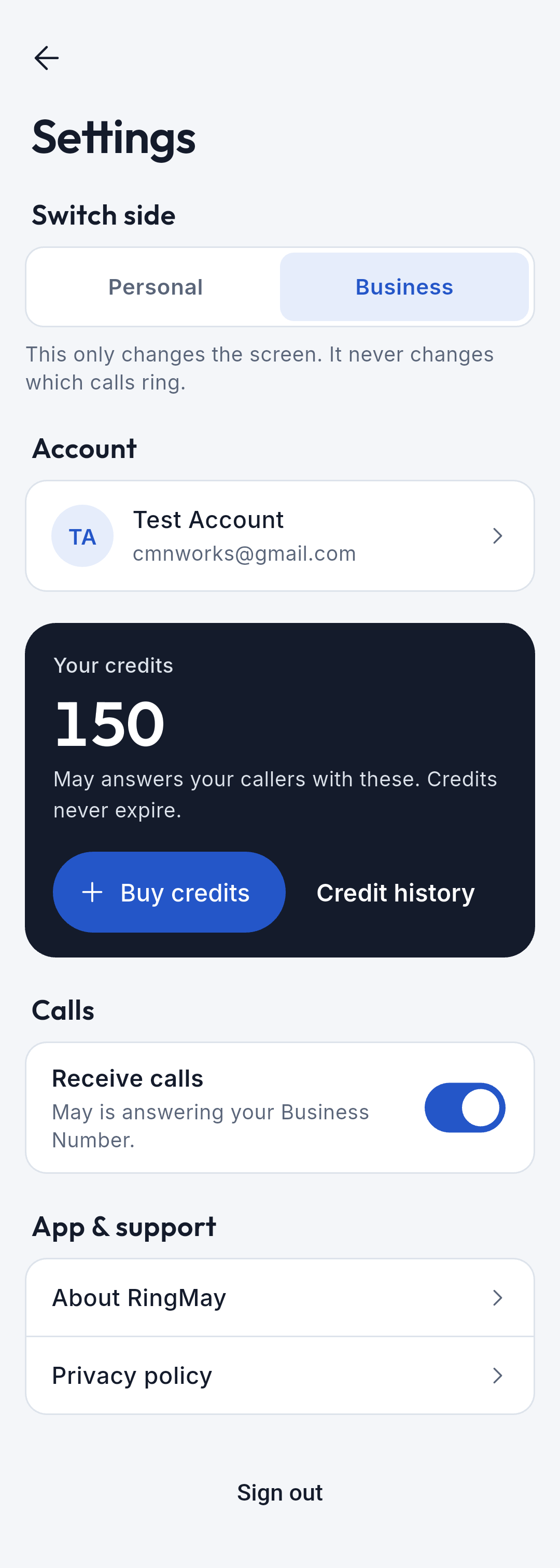
How to start or stop taking calls

  1. Tap the gear at the top.
  2. Use the Receive calls switch. Off means callers can't reach your business.

How to add credits

  1. Tap Buy credits.

How to go back to Personal

  1. Tap Personal under Switch side.
9:41●●●
Business Settings